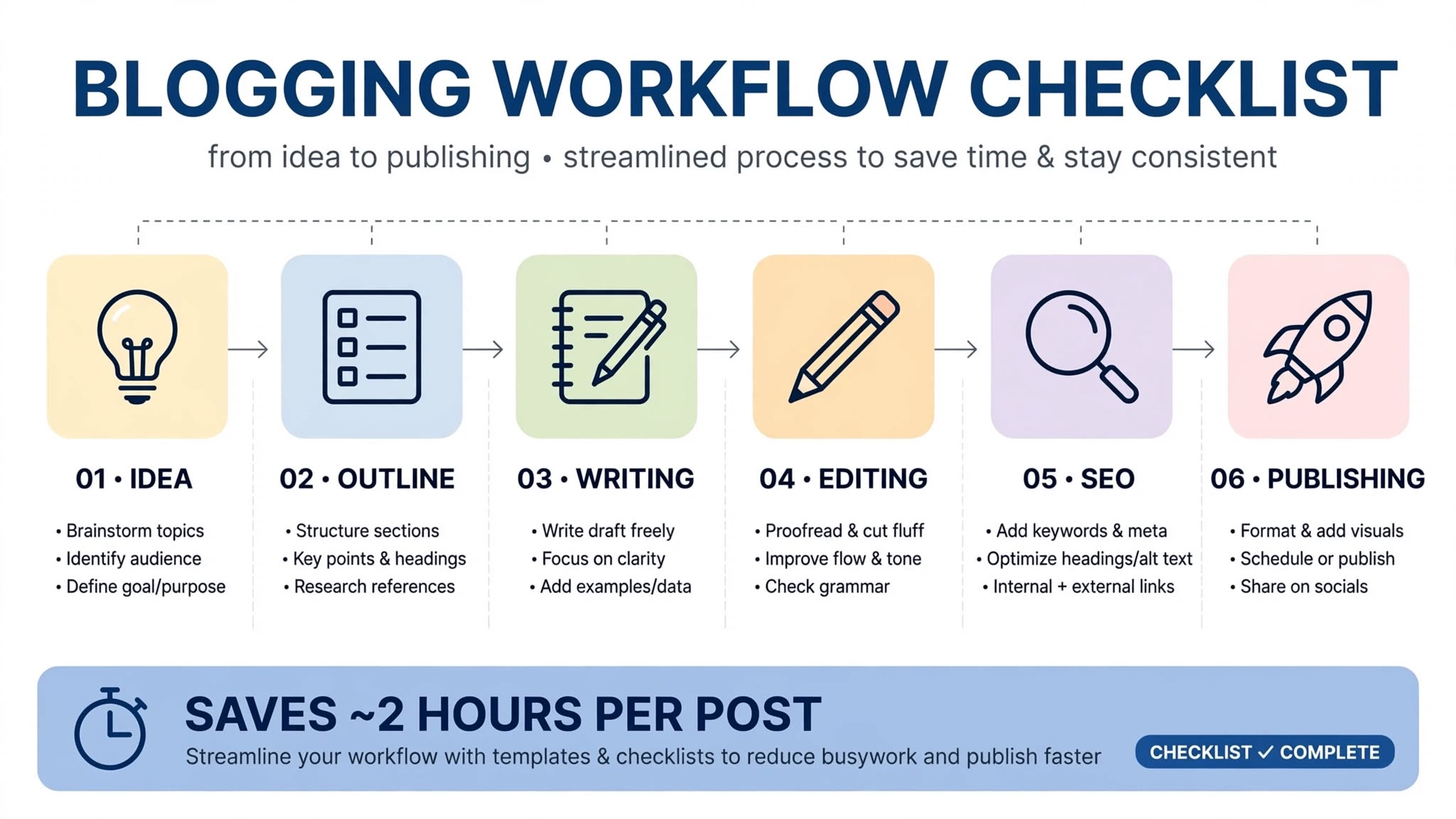
Blogging Workflow Checklist: My Proven Google Docs to WordPress System That Saves 2 Hours Per Post (2026)
In 2023, I was publishing 1 blog post per week and it took me 6-7 hours per post. Research, writing, formatting, images, SEO, publishing - everything was random, no system. I would write directly in WordPress, lose work due to browser crash, paste images from Docs as base64 which broke site speed, and forget alt text which hurt SEO. AdSense rejected my site 2 times for poor user experience and slow loading.
Then I created a fixed 6-phase blogging workflow from Google Docs to WordPress. Now I publish 3 posts per week and each post takes 2.5-3 hours total, not 6-7 hours. Same quality, better formatting, faster site, AdSense approved in 14 days. This workflow saved me 12 hours per week for last 2 years.
In this complete 2500-word guide, I will share my exact workflow checklist - research, outline, writing in Docs, transfer to Gutenberg, images, SEO, publishing checklist - step by step with templates you can copy.
Phase 1: Research - 30 Minutes (Most Bloggers Skip This)
80% of bloggers start writing without research, then wonder why post doesn't rank. Research is 30 minutes that saves 2 hours of rewriting later.
Step 1.1: Keyword Research (10 min)
- Google Keyword Planner: Search your main topic, e.g., "wordpress backup" - check volume, competition. Choose keyword with 500-5000 volume, low-medium competition for new blogs.
- Google Search: Search keyword, check People Also Ask, Related Searches at bottom - these are sub-topics for H2/H3.
- Answer The Public: Free tool - shows questions people ask around your keyword - use for FAQ section.
Step 1.2: Competitor Analysis (20 min)
- Open top 3 results for your keyword in Google. Check their H2/H3 structure - what they covered, what they missed.
- Check their word count via Word Counter extension - if they have 1500 words, you write 2000-2500 with more depth.
- Note their images, tables, FAQs - you will create better versions.
- Create spreadsheet: Column A Competitor URL, B H2s they covered, C Gaps you found, D Your better angle.
Phase 2: Outline in Google Docs - 20 Minutes
Outline is skeleton. Without outline, you write randomly, forget sections, and post becomes 1000 words with no structure.
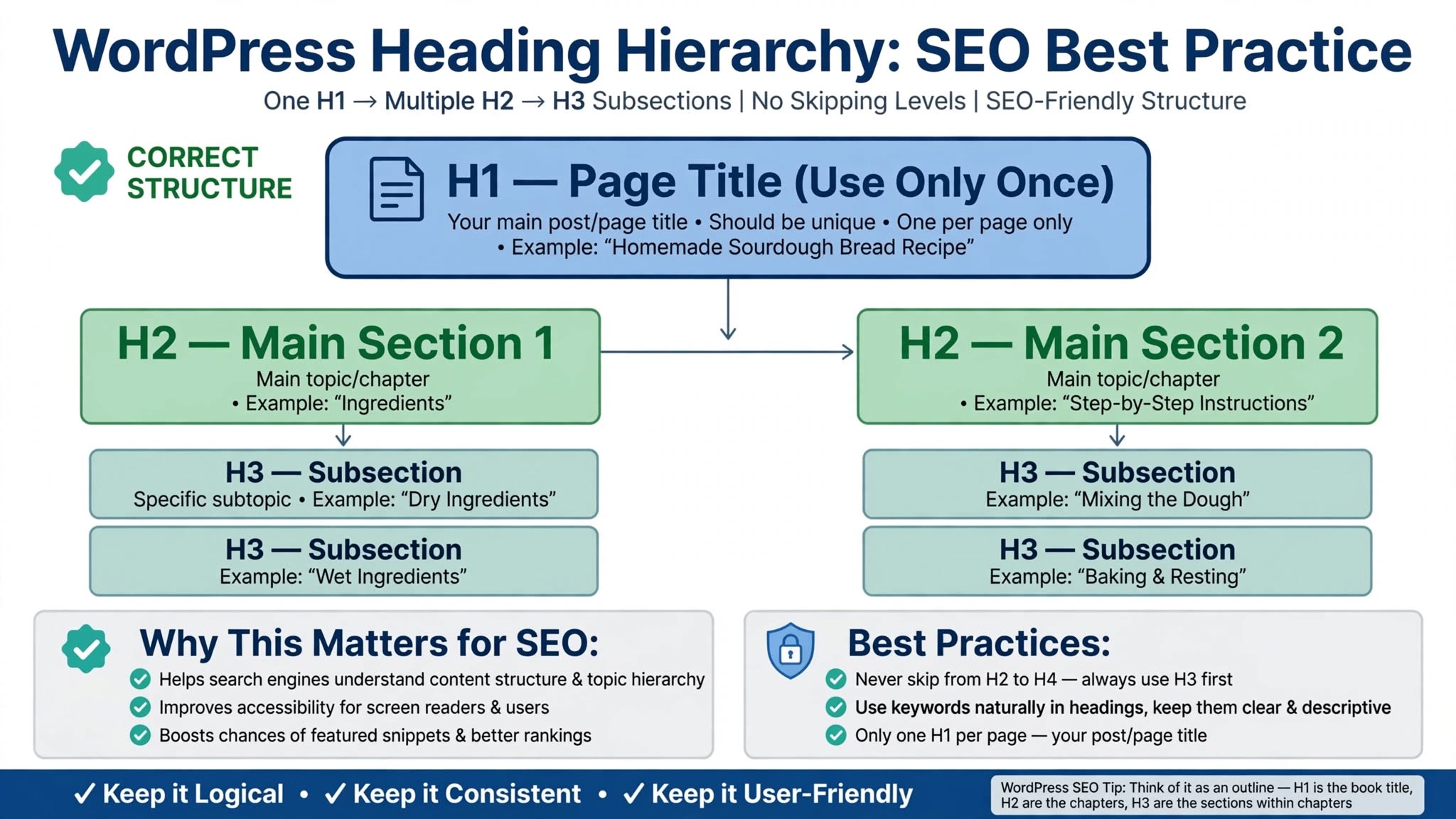
H1: Blog Post Title (e.g., How to Backup WordPress - Complete Guide 2026)
Introduction: Hook + Problem + Promise (150 words)
H2: Why Backups Are Non-Negotiable (with 3 stats)
H3: Real cost of no backup
H2: Types of Backups (Full, Incremental, Database Only)
H2: How to Backup Manually (5 steps)
H2: How to Backup with Plugin (UpdraftPlus)
H2: Where to Store Backups (Drive, Dropbox)
H2: How to Restore Backup (most miss this)
H2: My 10-Point Checklist
H2: FAQs (6 questions from People Also Ask)
Conclusion: Final Takeaway + CTA
[IMAGE: Figure 1 Workflow Diagram]
[IMAGE: Figure 2 Types Comparison]
[IMAGE: Figure 3 Restore Steps]
[TABLE: Backup Types Comparison]
[LINK: Related Guide 1, 2, 3]
Why placeholders: Writing [IMAGE: description] in Docs reminds you to add image later in WordPress, not paste from Docs as base64 which breaks speed. Same for [TABLE] and [LINK].
Phase 3: Writing in Google Docs - 90 Minutes
90 minutes writing = 2000-2500 words if you have outline. Without outline, 90 minutes = 800 words random.
My Writing Rules in Docs:
- Use only 5 styles: Normal Text for paragraphs, Heading 2 for H2, Heading 3 for H3, Bulleted List, Numbered List - never Title, Subtitle, custom fonts, colors.
- Bold only 5-7% words: Important keywords only, not whole sentences. Too much bold looks spammy for AdSense.
- Links via Ctrl+K: Insert real links with descriptive anchor, not "click here". Example: "WordPress Block Editor Handbook" links to wordpress.org documentation.
- Paragraphs 2-3 lines max: Short paragraphs for mobile - 60% readers mobile. Long paragraphs look wall of text.
- Write placeholders: [IMAGE: How to backup step 1], [TABLE: Backup Types], [CODE: wp-config code], [LINK: How to Choose Theme].
- Word count check: Tools > Word count - check 2500 words target. Google Docs shows live word count bottom left.
- Voice typing: Tools > Voice typing - speak faster than type for first draft, then edit.
Version history: File > Version history > See version history - Docs saves every second. If you delete something by mistake, restore from history. WordPress saves every 60 seconds only and keeps limited revisions.

Phase 4: Transfer to WordPress - 15 Minutes
Transfer is where 90% formatting issues happen. Do it right and save 45 minutes cleanup.
Step 4.1: Clean Transfer (5 min)
- In Docs, Ctrl+A select all, Ctrl+C copy.
- In WordPress > Posts > Add New, paste with Ctrl+Shift+V (Paste as plain text) - removes all Docs inline span styles like font-family: Arial, color #000.
- Now plain text - select each heading line, set to Heading > H2 or H3 from toolbar - takes 3 min for 2500 words but 100% clean.
- Add bold, italic, lists again - Ctrl+B, List icon - without messy span tags.
Step 4.2: Images & Tables (10 min)
- Never copy images from Docs: Copying from Docs pastes as base64 data:image/png;base64,... 2-3MB code inside HTML - page becomes 5MB, loads 8 seconds, AdSense rejects. Always write [IMAGE: description] placeholder in Docs, then in WordPress + > Image block > Upload optimized WebP under 150KB, 1200px width max, alt text with keyword, caption 13px gray.
- Tables: Never paste table from Docs - adds inline styles that break mobile. Write [TABLE: Backup Types] placeholder, then in WordPress + > Table block > 3 columns 4 rows > Header On > Fixed width Off > Wrap in Group with overflow-x:auto for mobile scroll.
- Code: Write [CODE] placeholder, then + > Code block > Paste code - dark background, preserves spaces.
Phase 5: Formatting in Gutenberg - 25 Minutes
Formatting makes post look professional like Claude blogs, not messy like amateur blog.
| Block | My Settings | Common Mistake |
|---|---|---|
| Paragraph | 17px, 1.85 line height, #374151, Left align, 22px margin bottom, 2-3 lines max | Enter 3 times for gap - creates empty blocks, huge gaps mobile |
| Heading H2 | 27px, 800 weight, #0f172a, border-left 4px solid #2563eb, padding-left 14px, 5-6 per 2500 words | Bold paragraph as heading - no SEO value, Google can't understand |
| Heading H3 | 20px, 700 weight, #1e293b, 2-3 per H2 | Using H1 inside content - confuses Google, hurts SEO |
| List | Real List block, indent 22px, Tab for nested | Typing - dash manually - not real list, Google doesn't understand |
| Image | WebP under 150KB, 1200px max, Large size not Full, alt text, caption 13px gray, 3 images per 2500 words | Pasting from Docs as base64 - 5MB page, slow, AdSense rejection |
| Table | Header On, Fixed width Off, overflow-x:auto wrapper for mobile scroll | Pasting from Docs with merged cells, colored cells - breaks mobile |
| Code | Code block, dark bg #0f172a, light text, horizontal scroll | Paragraph with monospace font - no background, messy |
| Blue Box | Group block, bg #eff6ff, border-left 4px solid #2563eb, padding 20px, radius 12px | Quote block for tips - wrong styling |
Reusable Blocks - Save 10 Minutes Per Post
Create Reusable Blocks for sections you use every post: Related Guides Box, Conclusion Box, FAQ Box, Author Box. Select blocks > 3 dots > Create Reusable Block > Name it. Then in any post type /reusable and select it - adds instantly. If you update Reusable Block and Save, updates everywhere automatically. Huge time saver for 100+ posts.
Phase 6: SEO & Publishing Checklist - 15 Minutes
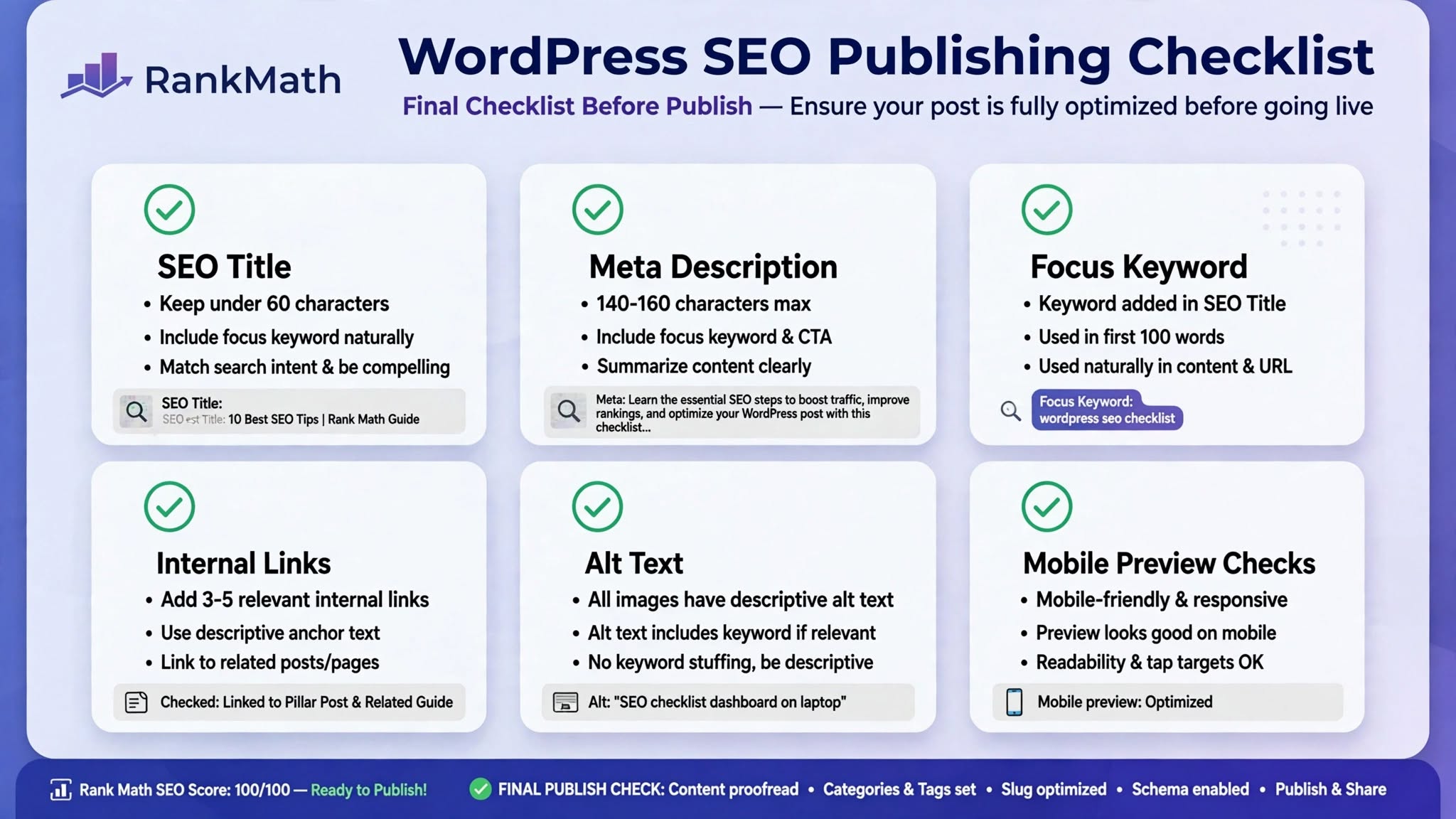
Publishing checklist prevents AdSense rejection and ranking drop. I use 10-point checklist before every post.
- H1 only once: Blog title is H1, never add H1 inside content. Inside start from H2, then H3. Using H1 inside confuses Google.
- H2/H3 hierarchy: 5-6 H2s for 2500 words, 2-3 H3s per H2, never skip H2 to H4. Each H2 300-400 words.
- Paragraphs 2-3 lines max: Short paragraphs for mobile - 60% readers mobile. Long paragraphs = wall of text.
- Bold only 5-7%: Important keywords only, not whole sentences. Too much bold = spammy for AdSense.
- Real List block: Not dash typed manually. Use List block from toolbar - Google understands as list.
- Links check: Internal links same tab, external new tab + rel noopener, no broken links, descriptive anchor not "click here".
- Images: 3 images for 2500 words, WebP under 150KB, 1200px max, alt text with keyword naturally, caption 13px gray, not base64 from Docs.
- No By theme meta: Check hide CSS at top - entry-meta display none - so By theme, Published date, Read time never show - Claude style clean.
- No tag errors: Check no Dropbox or Elementor or 【entity-GSC¦canonical_name=GSC】 tags showing as raw code. Break with HTML comment Google Docs, Dropbox.
- Mobile preview: Gutenberg top bar > Preview > Mobile and Desktop - check gaps, table scroll, image size, heading size. Schedule, not Publish immediately - check again after 1 hour with fresh eyes.
My Time Breakdown - Before vs After Workflow
| Phase | Before (Random) - 6-7 Hours | After (Workflow) - 3 Hours | Time Saved |
|---|---|---|---|
| Research | 0 min (skipped) - rewrite later 60 min | 30 min fixed | 30 min saved |
| Outline | 0 min (skipped) - structure messy | 20 min fixed | Better structure |
| Writing in Docs | 180 min in WordPress - lost work 2 times | 90 min in Docs - auto-save, no loss | 90 min saved |
| Transfer | 30 min normal paste + 60 min cleanup messy code | 15 min Ctrl+Shift+V clean transfer | 75 min saved |
| Formatting | 60 min fixing gaps, colors, lists | 25 min with blocks, reusable blocks | 35 min saved |
| Images/Tables | 30 min fixing base64 images, broken tables | 10 min upload WebP, fresh tables | 20 min saved |
| SEO Checklist | 0 min (skipped) - AdSense rejected 2 times | 15 min 10-point checklist | AdSense approved |
| Total | 6-7 hours + AdSense rejection | 3 hours + AdSense approved | 3-4 hours saved per post |
Related Guides on ThemeZone.co
- How to Choose a WordPress Theme 2026 Guide - theme controls Gutenberg styles - choose lightweight
- What Is a WordPress Plugin? A Beginner's Guide - avoid bloat plugins that break workflow
- How to Speed Up WordPress Websites (2026 Performance Guide) - clean workflow = faster site = AdSense approval
- How to Secure Your Online Accounts - secure Google Docs and WordPress accounts
External Resources
- Google Docs - Paragraph Styles Official Guide - official Heading styles guide
- WordPress.org - Block Editor Documentation - official Gutenberg handbook
- Google Search Central - Creating Helpful Content - why clean workflow ranks better
FAQ - Blogging Workflow
Should I write directly in WordPress or Google Docs?
For 1500+ word guides, Google Docs - auto-save every second, version history, offline, collaboration, no distractions. For 500-word news, WordPress direct is okay. I use Docs for 200+ posts, never lost work. WordPress saves every 60 seconds only and keeps limited revisions.
How to avoid formatting issues when pasting from Docs to WordPress?
Use Ctrl+Shift+V paste as plain text - removes Docs inline span styles like font-family: Arial. Then re-apply H2/H3 in Gutenberg. Takes 3 min extra for 2500 words but 100% clean, no span tags, saves 2 seconds page load time. Never paste images from Docs as base64 - upload separately WebP under 150KB.
How many images for 2500-word post?
3 images ideal - one after intro (Figure 1: Overview), one mid-content (Figure 2: Workflow or comparison), one before conclusion (Figure 3: Checklist). Each WebP under 150KB, 1200px max, Large size not Full, alt text with keyword naturally, caption 13px gray. Don't paste from Docs - upload separately.
How to make posts look like Claude blogs - no By theme meta?
Claude blogs have no By theme, Published date, Read time topbar - start directly with H1. To get same, add hide CSS at top: .entry-meta, .post-meta, .byline, .posted-on, .by-author, .read-time, .post-header-meta { display: none !important; }. This hides theme auto meta. Also break tags like Dropbox, Elementor with HTML comment to prevent tag error. Use this guide's CSS.
How much time does this workflow save?
Before workflow: 6-7 hours per post, random, AdSense rejected 2 times. After workflow: 3 hours per post, fixed 6 phases, AdSense approved in 14 days. Saves 3-4 hours per post. For 3 posts per week, saves 9-12 hours per week - 36-48 hours per month. That's 1 full work week saved per month.
Final Takeaway: My 6-phase workflow: Research 30 min (keyword + competitor top 3), Outline 20 min in Docs (H2/H3 + [IMAGE] placeholders), Writing 90 min in Docs (Normal Text, Heading 2/3, real lists, no custom colors), Transfer 15 min with Ctrl+Shift+V (clean, re-apply H2/H3, upload images WebP under 150KB separately), Formatting 25 min in Gutenberg (Paragraph 17px/1.85, H2 27px/800, reusable blocks), SEO Checklist 15 min (10 points: H1 once, H2/H3 hierarchy, short paras, alt text, no By theme meta, no tag errors, mobile preview). Total 3 hours vs 6-7 hours random. Saves 3-4 hours per post, consistent quality, fast site, AdSense-friendly, ranks better. Start today: Create Docs template with correct styles, use outline template, follow 6 phases for next post.


