
A website is only as safe as the accounts behind it. If someone gets into your email, they can reset the password for your hosting, your domain registrar and your WordPress admin within minutes. Most account takeovers do not involve clever hacking. They rely on reused passwords, phishing pages and logins with no second step.
This guide explains how to secure your online accounts in a sensible order: which accounts matter most, how password managers, two-factor authentication and passkeys fit together, and what to do if an account is compromised. A scorecard partway through shows where you stand today.
01The accounts that matter most
Not all accounts carry the same risk. For a website owner, four of them control everything else:
Primary email
Password resets for every other service arrive here. Secure this first.
Domain registrar
Whoever controls the domain controls where your site and email point.
Hosting account
Holds your files, databases and usually your backups.
WordPress admin
Full control of content, plugins and users on the site itself.
After these come your Google account for Search Console and Analytics, payment and advertising accounts, social profiles, and the AI and productivity tools that hold your drafts and data.
Use a password manager to give every account a unique password, turn on two-factor authentication for email, registrar, hosting and WordPress, prefer an authenticator app, passkey or security key over SMS, and store your recovery codes offline.
02How accounts get taken over
- Credential stuffing. A password leaked from one service is tried automatically on many others. It works only when passwords are reused.
- Phishing. A fake login page, often linked from a convincing email about a domain renewal or a hosting invoice, collects your details.
- Guessing and brute force. Short or common passwords are tried in bulk against login forms.
- Malware on your device. Software that steals saved passwords or active browser sessions.
- Weak recovery options. An old phone number or a forgotten secondary email becomes the easy way in.
Each defence in this guide closes one or more of these routes. None of them is complete on its own.
03Passwords and password managers
Current guidance from the US National Institute of Standards and Technology (NIST) favours length over forced complexity, allows long passphrases, and advises against making people change passwords on a schedule when there is no sign of compromise. The practical version is simple: long, unique, and stored somewhere safer than memory.
Why a password manager
Nobody can remember dozens of long unique passwords. A password manager generates them, stores them encrypted and fills them in for you. It also has a useful side effect: it will not auto-fill your details on a look-alike domain, which is a helpful warning sign for phishing.
How to set one up
- Choose a reputable manager. Dedicated apps and the managers built into major browsers and operating systems are both reasonable choices. Compare current features and security documentation on their official sites.
- Create one strong master passphrase of several unrelated words. This is the one password you memorise.
- Turn on two-factor authentication for the manager itself.
- Add your four priority accounts first, replacing each password with a generated one.
- Move the rest over gradually as you log in to them.
Advantages
- Unique password for every account
- Less typing, fewer resets
- Domain matching helps spot fake pages
- Many can also store passkeys
Trade-offs
- The master passphrase must be strong
- Needs a recovery plan if you lose access
- Initial setup takes some time
- Sharing with a team needs a suitable plan
04Two-factor authentication compared
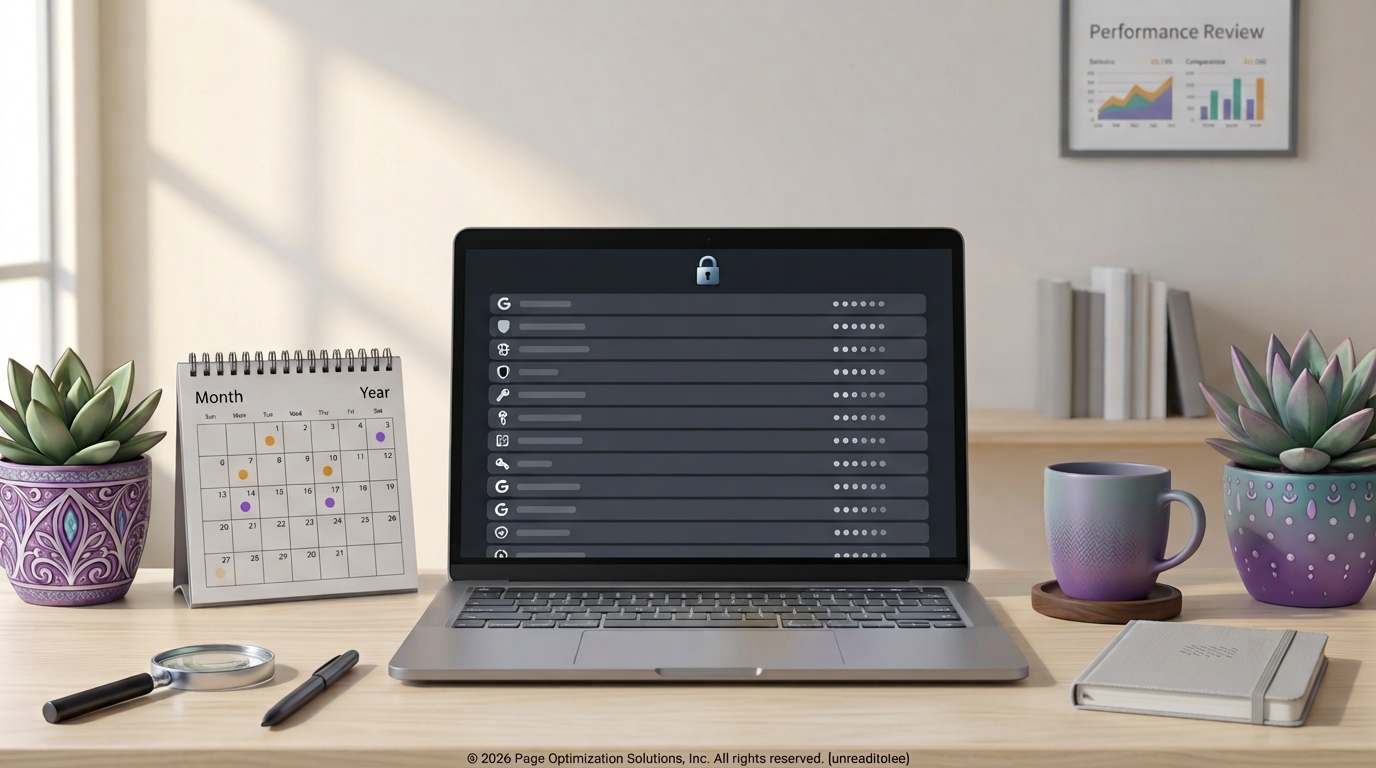
Two-factor authentication (2FA) adds a second proof of identity after the password. The methods differ in how well they resist phishing and interception.
| Method | How it works | Strength | Watch out for |
|---|---|---|---|
| SMS code | Code sent by text message | Better than no 2FA | SIM-swap fraud and message interception; codes can be phished |
| Authenticator app | App generates a time-based code on your phone | Good | Codes can still be typed into a fake page; back up the app or keep recovery codes |
| Push approval | You approve a prompt on a trusted device | Good | Approving prompts you did not start |
| Security key or passkey | Cryptographic check bound to the real website | Strongest, phishing-resistant | Register a second key or keep another recovery method |
Use the strongest method each service offers, but do not wait for a perfect option. SMS codes on an account are far better than a password alone.
2FA on WordPress
On self-hosted WordPress, two-factor login is normally added with a plugin or provided by your host or a security service. Check what your setup supports, require it for every administrator and editor, and test it with a second admin account before relying on it.
05Passkeys explained
A passkey replaces the password with a pair of cryptographic keys. The private key stays on your device or in your credential manager, the website stores only the public key, and you approve a login with your fingerprint, face or device PIN.
Passkeys are built on FIDO standards, and they solve two old problems at once. There is no shared secret for a website to leak, and a passkey only works on the genuine domain it was created for, so a fake login page receives nothing useful.
- Use them where offered. Major email providers and a growing number of services support passkeys.
- Keep a fallback. Leave a second sign-in or recovery method in place in case you lose the device.
- Expect gaps. Support varies between services, so you will run passkeys alongside passwords for some time.
06Account security scorecard
Tick what is already true for you. The score updates as you go, and the tool lists the three most valuable steps you have not taken yet.
Account Security Scorecard
A browser-based self-assessment. It does not scan your accounts or your website, and your answers stay on this page.
Not startedscore out of 100
07A 60-minute setup plan
- Minutes 0 to 15: install a password manager, create the master passphrase and enable its 2FA.
- Minutes 15 to 30: secure your primary email with a new unique password, 2FA and saved recovery codes. Review its recovery email and phone.
- Minutes 30 to 45: repeat for your domain registrar and hosting account. Many registrars also offer a transfer lock; confirm it is on.
- Minutes 45 to 55: in WordPress, open Users, delete accounts nobody uses, lower roles that are higher than needed, and set up two-factor login for administrators.
- Minutes 55 to 60: put printed or written recovery codes somewhere safe and add a calendar reminder to review everything in six months.
Account security protects the door. It does not replace keeping WordPress, plugins and themes updated or having tested backups, so treat this as one layer of several.
08Common mistakes and advanced tips
Common mistakes
- Sharing one admin login across a team, which makes it impossible to remove one person's access or see who changed what.
- Keeping recovery codes only on the phone that also runs the authenticator app.
- Clicking login links in emails. Type the address or use a bookmark for registrar, hosting and banking sites.
- Leaving former freelancers as administrators.
- Approving a sign-in prompt you did not start. Deny it and change the password.
Change the password from a device you trust, sign out all other sessions, review recovery details and forwarding rules, re-check 2FA settings, and then change the password on any account that shared it. For a hacked site, contact your host early.
Advanced tips
- Use a dedicated admin email. An address used only for registrar and hosting logins receives less phishing than a public one.
- Register two security keys on critical accounts and keep the spare in a different place.
- Use application passwords, not your main password, when connecting external apps to WordPress. They can be revoked individually from your profile screen.
- Audit third-party access. Review which apps have permission on your Google account and remove those you no longer use.
- Apply the same care to content tools. If you follow our AI content workflow, the AI account holds your drafts and prompts, so give it a unique password and 2FA too.
Planning a round of site maintenance? Pair this with a content review: our guide on how to update old blog posts uses the same Users screen clean-up as a first step before bulk edits.
09FAQs
Are password managers safe?
No tool is risk-free, but a reputable manager protected by a strong master passphrase and 2FA is considerably safer than reusing passwords or keeping them in a document. Read the provider's security documentation before choosing.
Is SMS two-factor authentication still worth using?
Yes, when it is the only option. It blocks attacks that rely on a stolen password alone. Where a service offers an authenticator app, passkey or security key, switch to that.
What happens if I lose my phone?
You sign in with the recovery codes you saved or a second registered method, then set up 2FA again on the new device. This is why recovery codes should be stored somewhere other than the phone.
Do passkeys replace two-factor authentication?
A passkey combines something you have (the device) with something you are or know (biometric or PIN), so many services treat it as a complete sign-in. Each service decides its own policy, and some still ask for an extra step.
How often should I change my passwords?
Change a password when there is a reason: a breach notice, a suspicious login, or a person leaving the team. Routine changes without cause tend to produce weaker, predictable passwords, which is why NIST advises against forcing them.
10Conclusion
Securing your online accounts comes down to a short list done in the right order: unique passwords from a manager, two-factor authentication on the accounts that control everything else, stronger methods where they are offered, and recovery options you have actually tested. An hour of setup removes the most common ways website owners lose control of their sites.
References
- NIST SP 800-63B: Digital Identity Guidelines, authentication
- CISA: Secure Our World
- FIDO Alliance: passkeys
- WordPress documentation: hardening WordPress
- Have I Been Pwned: breach lookup
Next steps
With your logins protected, put the time into content: plan new posts with the AI content workflow and revive older ones with the content refresh guide.