
Images are usually the heaviest part of a blog post. A single oversized photo can outweigh all the text, styles, and scripts on a page combined, and it often decides how quickly your main content appears. That is why the choice of image format is more than a technical detail. It affects load time, mobile data use, and how professional your site feels.
For years the decision was simple: JPEG for photos, PNG for graphics. Then WebP arrived, and more recently AVIF. Both promise smaller files at similar visual quality, and WordPress now supports both. The question most site owners ask is which one they should actually use.
This guide compares WebP and AVIF in practical terms: file size, quality, browser support, server requirements, and day-to-day workflow in WordPress. By the end you will know which format suits your site, how to switch safely, and which mistakes to avoid. The results depend on your images and hosting, so treat the numbers here as starting points and test your own files.
Why Image Format Matters for Website Speed
When someone opens your article, the browser downloads the HTML first, then discovers the images. On many pages the largest visible element, often the featured image, becomes the Largest Contentful Paint element. If that file is large, the main content takes longer to appear, especially on a mobile connection.
A modern format can shrink the file without an obvious drop in quality. Smaller files also save bandwidth for visitors on limited data plans and reduce load on your server. These benefits support a better experience for readers, which is a more reliable goal than chasing a score.
Remember: format is only one part of image optimization. Correct dimensions, sensible compression, and proper loading behavior matter just as much. A well-sized JPEG can beat a badly sized AVIF.
WebP Explained
WebP is an image format developed by Google that supports lossy and lossless compression, transparency, and animation. It has been supported in WordPress uploads since version 5.8 and works in all current major browsers, so it is a safe, mature choice.
WebP Advantages
- Typically smaller than JPEG and PNG at similar quality
- Supports transparency, replacing many PNGs
- Very wide browser and tool support
- Fast to encode and decode
WebP Disadvantages
- Usually larger than AVIF for photos
- Lossy compression can show blocking in smooth gradients
- Less headroom for very high-quality images
AVIF Explained
AVIF is a newer format based on the AV1 video codec. It also supports lossy and lossless compression, transparency, and animation, and it can handle wider color ranges. WordPress added support for uploading AVIF images in version 6.5. Current major browsers support it, though you can confirm the latest status on Can I use: AVIF.
AVIF Advantages
- Often smaller than WebP for photographic images
- Good detail retention at low file sizes
- Handles gradients and skies well
- Supports transparency and wide color
AVIF Disadvantages
- Slower to encode, which can strain basic hosting
- Server support for creating AVIF varies
- Older devices may decode it more slowly
- Fewer tools and plugins than WebP
WebP vs AVIF: Side-by-Side Comparison
| Factor | WebP | AVIF |
|---|---|---|
| File size (photos) | Smaller than JPEG | Often smaller than WebP, varies by image |
| Image quality at low sizes | Good, may soften fine detail | Often keeps detail and gradients better |
| Transparency | Yes | Yes |
| Animation | Yes | Yes |
| Encoding speed | Fast | Slower, more server resources |
| Browser support | All current major browsers | All current major browsers |
| WordPress core support | Since 5.8 | Since 6.5 |
| Tool and plugin support | Very wide | Growing |
File Size and Quality
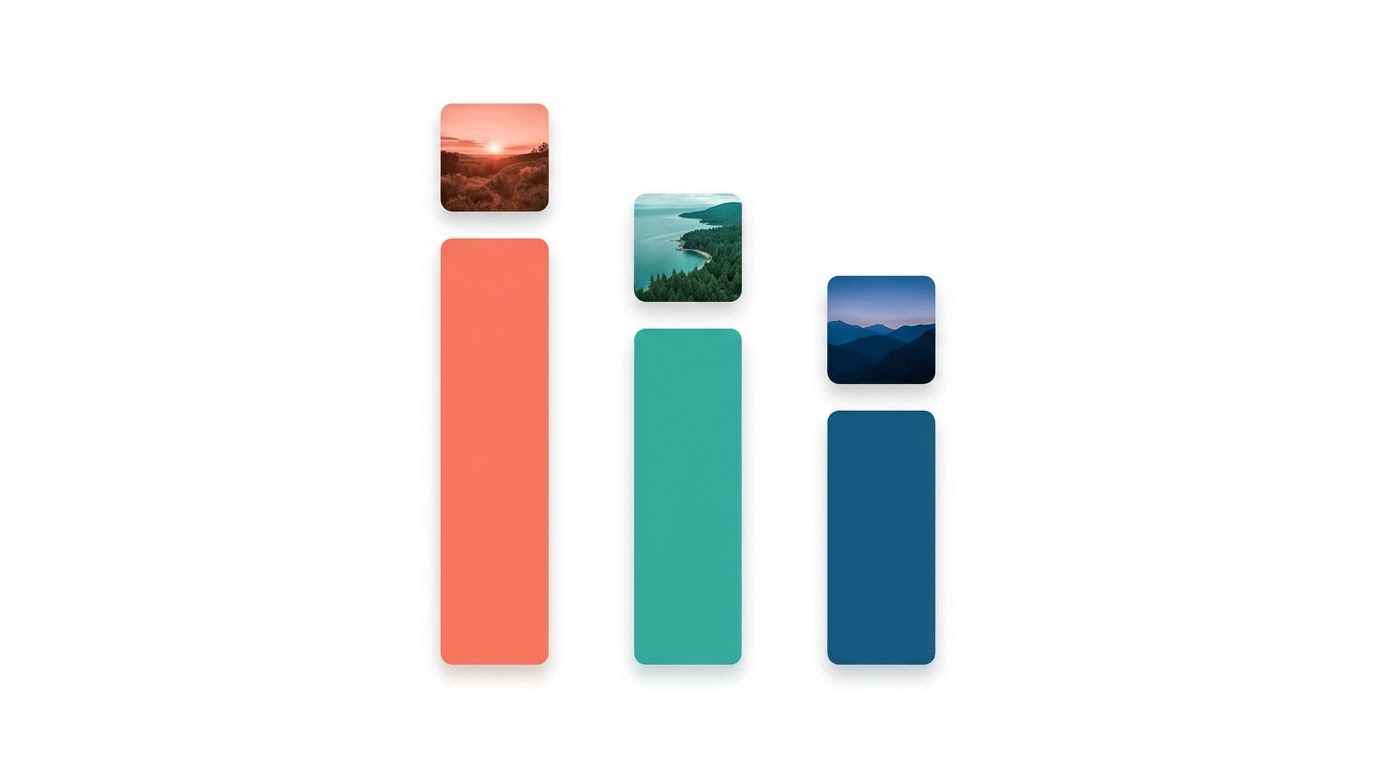
AVIF often produces smaller files than WebP at comparable visual quality, particularly for photographs with smooth tones. That said, the gap is not fixed. Detailed textures, screenshots, and graphics with sharp edges can behave differently. The only reliable way to know is to convert a few of your own typical images and compare them side by side.
Encoding Speed and Server Load
AVIF takes longer to encode. On a modern VPS this is rarely a concern, but on entry-level shared hosting a bulk conversion or many simultaneous uploads can be slow or fail. WebP is lighter on the server, which is one reason it remains the pragmatic default.
Browser and WordPress Support
Both formats work across current major browsers, which you can check at Can I use: WebP. WordPress itself supports both, but creating resized versions of an image depends on the image library on your server. If the library cannot process AVIF, uploads may fail or no thumbnails will be created.
Which One Should You Choose?
There is no universal winner. Match the format to your situation.
| Your situation | Suggested choice | Why |
|---|---|---|
| Beginner, simple blog, shared hosting | WebP | Easy, fast, safe, and widely supported |
| Photo-heavy site with capable hosting | AVIF with WebP or JPEG fallback | Greater savings on photographs |
| Many logos, icons, or transparent graphics | WebP (or SVG for icons) | Simple and predictable results |
| Need to support very old browsers | WebP or JPEG fallback | Broadest compatibility |
| Limited time and technical comfort | WebP | Lower risk and less maintenance |
A practical rule: start with WebP everywhere. Once that is stable, test AVIF on your largest photographs and keep it only where the savings are clear and your server handles it without trouble.
How to Use WebP and AVIF in WordPress, Step by Step

Step 1: Check What Your Server Supports
Go to Tools > Site Health > Info > Media Handling in your dashboard. It lists your image library (GD or Imagick) and the formats it can process. If WebP or AVIF is missing, ask your host about enabling it or upgrading PHP and image libraries.
Step 2: Resize Before You Convert
Do not upload a 5,000-pixel-wide photo for a column that displays at 800 pixels. Resize to roughly the largest size it will be shown at, allowing for sharper high-density screens. Resizing often saves more than any format change.
Step 3: Convert and Compare Quality
Use an image editor, an online converter, or a conversion plugin. As a starting point, many people try a quality value around 75 to 80 for WebP and around 50 to 60 for AVIF, then adjust after looking at the result. These numbers are only starting points because encoders differ. Compare the converted image against the original at full size, and check faces, text, and gradients.
Step 4: Upload and Let WordPress Handle Sizes
Upload the converted files to the Media Library. WordPress will generate smaller sizes and add responsive srcset attributes, so visitors on phones download smaller versions automatically.
Step 5: Optionally Convert Uploads Automatically
If you want WordPress to create WebP versions of JPEG uploads, a small snippet in a code-snippets plugin or a child theme can do it. Test it on a staging site first:
add_filter( 'image_editor_output_format', function ( $formats ) {
    $formats['image/jpeg'] = 'image/webp';
    return $formats;
} );
The same approach can target AVIF by using image/avif, but only if your server supports it. An image optimization plugin is a simpler alternative if you prefer settings screens over code.
Step 6: Provide a Fallback When Needed
If you serve AVIF in custom templates, the picture element lets the browser pick the first format it understands:
<picture>
  <source srcset="photo.avif" type="image/avif">
  <source srcset="photo.webp" type="image/webp">
  <img src="photo.jpg" alt="Describe the image" width="1200" height="675">
</picture>
Step 7: Handle Loading Correctly
Lazy loading helps images below the fold, and WordPress adds it by default. Do not lazy-load your featured image or any large image visible at the top of the page, because that can delay the main content. Setting width and height attributes also prevents layout shifts while images load.
Step 8: Test on Real Pages
Run your page through PageSpeed Insights, and open it on a real phone. Check that every image displays and that nothing looks blurry or stretched. Keep your original files in a backup folder so you can reconvert if needed.
Images are one of the easiest ways to speed up your WordPress site, but the right server capabilities make the process smoother. If you prefer not to touch code, an image optimization plugin can automate most of these steps. And once your images are lean, you can improve INP by looking at scripts, as covered in our responsiveness guide.
Common Mistakes and How to Avoid Them
- Converting without resizing. A huge image in a modern format is still a huge image.
- Over-compressing. Very low quality values cause blur and artifacts. Compare visually before bulk converting.
- Lazy-loading the featured image. This can delay the most important visual on the page.
- Re-compressing already compressed files. Convert from the original whenever possible.
- Ignoring alt text. Format does not replace accessibility. Describe each meaningful image.
- Switching everything at once. Test a few posts first, then roll out gradually.
- Assuming the server can handle AVIF. Check Site Health before relying on it.
Quick Checklist
- Check Media Handling in Site Health.
- Resize images to realistic display sizes.
- Start with WebP, then test AVIF on large photos.
- Compare quality visually before bulk conversion.
- Keep fallbacks where you serve AVIF manually.
- Do not lazy-load the top-of-page image.
- Write useful alt text and set image dimensions.
- Test on mobile and keep original files backed up.
Frequently Asked Questions
Is AVIF better than WebP for WordPress?
AVIF often gives smaller files for photographs, but it needs more server resources and tool support. WebP is simpler and safer for most beginners. The better choice depends on your images and hosting.
Does WordPress support AVIF?
Yes. WordPress added AVIF upload support in version 6.5, but generating thumbnails depends on whether your server's image library supports AVIF.
Why won't my AVIF image upload?
The most common reasons are an older WordPress version, a server image library without AVIF support, or file size and memory limits. Check Site Health and ask your host if needed.
Should I use WebP and AVIF together?
You can. Serving AVIF first with a WebP or JPEG fallback gives modern browsers the smallest file while keeping compatibility. It adds complexity, so many sites are fine with WebP alone.
Will switching formats improve my rankings?
Not by itself. Faster-loading images can improve user experience, and speed is one of many factors search engines consider. Helpful content remains the main priority.
Conclusion
WebP and AVIF are both good choices, and both beat old JPEG and PNG files for most web use. WebP is the dependable, low-effort option that suits nearly every WordPress site. AVIF can squeeze out extra savings on photographs, provided your hosting can handle it and you are comfortable testing results.
Whichever you pick, remember the basics: resize first, check quality by eye, avoid lazy-loading the top image, and test on a real phone. Make changes gradually and keep your originals. Smaller, well-prepared images make your pages feel faster, and readers notice that long before they notice the file extension.