WebP vs AVIF vs JPEG vs PNG: The Best Image Format for Your Website
You export a photo, upload it, and the page takes four seconds to load on a phone. The image looks fine. The problem is that it is a 3 MB PNG doing a job a 150 KB WebP could do. Choosing the right image format is one of the few speed fixes that needs no plugin, no developer and no budget.
For most website images, use WebP: it is supported by all current browsers and is usually much smaller than JPEG or PNG at similar quality. Use AVIF when you want the smallest files and your tools support it. Keep JPEG as the universal fallback for photos, PNG for images that need lossless quality or transparency where WebP is not an option, and SVG for logos and icons. Resize to the displayed width first; that saves more than any format change.
Why image format matters
Images are usually the largest part of a web page by weight. A typical article page carries more bytes of images than of HTML, CSS and JavaScript combined, so the format and size you choose for images decide much of how fast the page feels.
That matters for three practical reasons:
- Loading speed. The main image is often the Largest Contentful Paint element, one of the Core Web Vitals Google reports in Search Console. A heavy hero image delays it directly.
- Mobile visitors. On slower connections and metered data, every unnecessary megabyte is felt.
- Hosting and bandwidth. Smaller files mean smaller backups, faster media libraries and lower transfer.
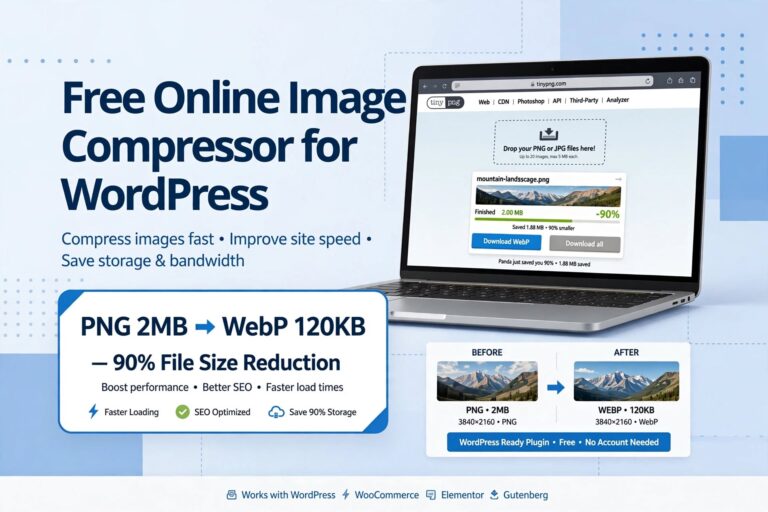
The same picture can be 2 MB or 120 KB with no difference a visitor would notice. The gap comes from three decisions: dimensions, format and compression level. This guide covers all three, and the converter further down lets you try them on your own image.
Four concepts to know first
Throws detail away
Lossy compression removes information the eye is unlikely to miss. Smaller files, with visible damage if pushed too far. JPEG, and the usual modes of WebP and AVIF.
Keeps every pixel
The image is rebuilt exactly. Larger files. PNG, and the lossless modes of WebP and AVIF.
Made of pixels
Photos and screenshots. Has a fixed size and blurs when enlarged. JPEG, PNG, WebP, AVIF, GIF.
Made of shapes
Described by maths, so it stays sharp at any size and is often tiny. SVG, for logos, icons and simple illustrations.
Two more terms appear in every tool. Transparency (an alpha channel) lets the background show through, which JPEG cannot do. Quality is the slider, usually 0 to 100, that sets how hard a lossy encoder compresses. The numbers are not comparable between formats: quality 80 in WebP is not the same thing as quality 80 in JPEG.
Image formats compared
| Format | Compression | Transparency | Animation | Browser support | Best for |
|---|---|---|---|---|---|
| JPEG | Lossy | No | No | Universal | Photos where maximum compatibility matters |
| PNG | Lossless | Yes | No (APNG exists) | Universal | Screenshots with text, graphics needing exact pixels |
| WebP | Lossy and lossless | Yes | Yes | All current major browsers | The default choice for most web images |
| AVIF | Lossy and lossless | Yes | Yes | Current Chrome, Edge, Firefox and Safari | Smallest files for photos; HDR and wide colour |
| SVG | Vector | Yes | Yes (CSS or SMIL) | Universal | Logos, icons, charts, simple illustrations |
| GIF | Lossless, 256 colours | On/off only | Yes | Universal | Legacy animations; video or WebP is usually better |
Browser support changes over time. Check a compatibility table such as MDN's before relying on a newer format for something critical.
JPEG
The format every camera, phone and browser understands. It handles photographs well and has done since the 1990s. Its weaknesses are no transparency, visible blocky artefacts at low quality, and files larger than modern formats for the same look.
PNG
Lossless and pixel-exact, with full transparency. That makes it right for screenshots containing text and for graphics with sharp edges. It is the wrong choice for photographs, where files become several times larger than a JPEG with no visible gain.
WebP
Developed by Google and now supported across current browsers, WebP does nearly everything JPEG and PNG do in one format, at smaller sizes. Google's own published comparisons put lossy WebP at roughly 25 to 34 percent smaller than comparable JPEG, and lossless WebP at about 26 percent smaller than PNG. Your results will vary by image. WordPress has accepted WebP uploads since version 5.8.
AVIF
A newer format based on the AV1 video codec. It often produces smaller files than WebP for photographs at the same visual quality, and supports HDR and wide colour. The trade-offs are slower encoding, patchier support in older software and image editors, and occasional smoothing of fine texture at aggressive settings. WordPress has supported AVIF uploads since version 6.5, provided the server's image library can handle it.
SVG
Not a photo format at all. An SVG is a text file describing shapes, so a logo can be one or two kilobytes and razor sharp on any screen. WordPress does not allow SVG uploads by default, because an SVG can contain scripts; only upload SVGs you trust, through a plugin that sanitises them.

How to choose, step by step
- Is it a logo, icon or simple illustration? Use SVG if you have a vector original.
- Is it a photograph? Use WebP, or AVIF if your workflow supports it. Keep a JPEG copy if you also need it for email or documents.
- Is it a screenshot with text or a graphic with flat colour? Try lossless WebP first, PNG otherwise.
- Does it need a transparent background? WebP, AVIF or PNG. Never JPEG.
- Is it an animation? A short MP4 or WebM video is normally far smaller than a GIF. Animated WebP is a middle path.
- Resize it. Work out the largest width it will be shown at, roughly double that for sharp screens, and no more.
- Compress and compare. Lower the quality until you can see a difference at normal viewing size, then step back up one notch.
Dimensions beat format. Shrinking a 4000-pixel photo to 1600 pixels removes about 84 percent of its pixels before any compression is applied. Do that first, then choose the format.
Free image converter and compressor
Choose an image from your device, pick a format, quality and maximum width, and compare the result. The file is processed inside your browser and is never uploaded.
Image Converter & Compressor
Free mini tool
Runs entirely in your browser using its built-in image encoder. Nothing is uploaded. It is a simple converter for single images, not a replacement for a dedicated optimiser, and results depend on your browser.
No image chosen yet.
Lower quality gives a smaller file. PNG is lossless, so the slider has no effect on it.
Worked examples
| Image | Common mistake | Better choice | Why |
|---|---|---|---|
| Blog featured image, 1200 × 630 | PNG exported from a design tool | WebP, quality around 75 to 85 | It is photographic content; lossless brings no visible benefit |
| Product photo on white | Full camera resolution JPEG | WebP resized to about twice the display width | Most of the pixels were never shown |
| Dashboard screenshot | JPEG, with fuzzy text | PNG or lossless WebP | Lossy compression smears sharp edges and small text |
| Company logo | Large PNG | SVG | Sharp at every size, usually a few kilobytes |
| Ten-second screen recording | Animated GIF | MP4 or WebM video, muted and looping | Often a tenth of the size or less |
What about WordPress?
WordPress creates several smaller copies of each upload and tells the browser about them with srcset, so phones can fetch a smaller file. It also adds lazy loading to most images automatically. Neither helps if the original is the wrong format or if a theme requests the "full" size. Upload a sensibly sized WebP and both features work in your favour. For the wider picture, see our guide to page weight and performance budgets.

Advantages and disadvantages of modern formats
Advantages of WebP and AVIF
- Smaller files at similar visual quality
- Transparency and animation in one format
- Faster pages, especially on mobile
- Supported by current browsers and by WordPress
Disadvantages
- Some older apps and email clients cannot open them
- AVIF encodes slowly and tooling is less mature
- Not every host's image library supports AVIF
- Re-compressing an already lossy file loses more detail
Who should switch: almost any website owner publishing photos or featured images. Who should keep JPEG and PNG: anyone sending images by email, supplying print files, or supporting old devices and software. Keep your originals either way.
Common mistakes
- Uploading at camera resolution. A 12-megapixel photo shown 800 pixels wide wastes most of its bytes.
- Using PNG for photos. The single most common cause of multi-megabyte blog images.
- Using JPEG for screenshots. Text turns fuzzy and the file is not even smaller.
- Converting a lossy file again and again. Each pass removes more detail. Always start from the original.
- Converting PNG to WebP and expecting miracles on a tiny icon. Savings on very small files are negligible.
- Setting quality to 100. File size climbs steeply for no visible gain. Most photos look the same at 75 to 85.
- Forgetting width and height. Images without dimensions cause the layout to jump while loading.
- Lazy-loading the hero image. The main image at the top of the page should load immediately.
- Ignoring alt text. Format affects speed; alt text affects accessibility and image search. You need both.
Conversion to a lossy format cannot be undone. Store the untouched original somewhere safe before compressing, so you can re-export when requirements change.
Advanced tips
- Serve fallbacks with the picture element.
<picture>lets you offer AVIF first, then WebP, then JPEG, and the browser takes the first it understands. Many WordPress optimisation plugins do this for you. - Let a CDN convert on the fly. Several content delivery networks and hosts can serve WebP or AVIF automatically from your JPEG and PNG uploads.
- Preload the hero image on important pages if it is your Largest Contentful Paint element, and never lazy-load it.
- Name files descriptively.
blue-ceramic-mug.webpis more useful thanIMG_4471.webp. - Strip metadata. Camera data and location tags add weight and can reveal where a photo was taken. Re-encoding through a canvas, as the tool on this page does, removes them.
- Check the result where it matters. Look at the page on a phone and run it through PageSpeed Insights. If the site is still slow, work through why a WordPress site is slow.

Image checklist
FAQ
For web use, usually yes. WebP typically gives smaller files at similar visual quality and adds transparency and animation. JPEG remains the safer choice for email, print and older software.
AVIF often produces smaller photographic images at the same quality and supports HDR. WebP encodes faster and is supported by more tools. Either is a good choice for websites; many sites serve AVIF with WebP as a fallback.
Yes. WordPress has accepted WebP uploads since version 5.8 and AVIF since version 6.5, as long as the image library on your server supports the format. Check Tools → Site Health → Info → Media Handling.
Lossy WebP removes some detail, as JPEG does. At sensible quality settings the difference is not visible at normal viewing size. Lossless WebP keeps every pixel.
It depends on your theme's content width. A common approach is a featured image of 1200 × 630 pixels and in-article images around 1200 to 1600 pixels wide, kept well under 200 KB each where possible.
PNG or lossless WebP. Screenshots contain sharp edges and text, which lossy compression blurs.
The image is read and converted by your own browser. It is not uploaded to ThemeZone or any other server, and it is discarded when you close or reload the page.
Browsers can display AVIF but most cannot yet create it from a canvas. The tool only lists formats your browser is able to encode. Use a desktop or command-line tool for AVIF.
Indirectly. Format affects file size, file size affects loading speed, and speed is one of many signals. Google Search can index JPEG, PNG, WebP, AVIF, SVG, GIF and BMP images.
Final recommendation
The best image format for a website today is WebP for nearly everything photographic, SVG for logos and icons, PNG or lossless WebP for screenshots, and AVIF where your tools make it easy. Before any of that, resize the image to the size it is shown at. Use the converter above to see the difference on one of your own images, then make "resize, convert, check" the routine for every upload.
Official references
- MDN: image file type and format guide
- Google for Developers: WebP
- web.dev: Learn Images
- Google Search Central: image SEO best practices
- WordPress Core: WordPress 6.5 adds AVIF support
Related articles
WordPressWhy is my WordPress site slow?
WordPressWordPress caching explained
Next step
Pick the heaviest image on your most visited page, run it through the converter above and replace it. Then measure the page again with our page weight calculator.