

Most people think about backups on the day they need one. A plugin update breaks the layout, a post is deleted by accident, or the hosting account has a problem, and suddenly months of work depend on a copy that may not exist.
A backup is the one piece of maintenance that makes every other mistake fixable. The good news is that backing up a WordPress site is not difficult, and you can set it up once and let it run on a schedule.
This guide explains what a full backup contains, compares three reliable methods, and gives you step-by-step instructions for each one.
Quick answer
A complete WordPress backup has two parts: your files (themes, plugins, uploads and configuration) and your database (posts, pages, comments and settings). The easiest method for beginners is a backup plugin that runs on a schedule and sends copies to remote storage such as Google Drive or Dropbox. Keep at least one copy somewhere other than your web server, and test that you can restore it.

What Does a WordPress Backup Include?
WordPress stores your site in two places, and you need both to rebuild it.
1. The files
- The
wp-contentfolder, which holds your themes, plugins and every image you have uploaded - The
wp-config.phpfile, which contains your database connection details - The
.htaccessfile on many servers, which controls redirects and permalinks - WordPress core files, which can be downloaded again but are simple to include
2. The database
The database holds your posts, pages, comments, categories, users and almost every setting. Without it, you would have your images and theme but none of your articles.
Remember
A backup that contains only files, or only the database, is half a backup. Always check that your method saves both.
Why Backups Matter
- Updates sometimes go wrong. A theme, plugin or core update can conflict with something else on your site.
- People make mistakes. Deleting the wrong page or editing the wrong file happens to everyone.
- Security problems happen. If a site is hacked, a clean backup is often the fastest way to recover.
- Hosts are not perfect. Servers fail, accounts get suspended and host backups are not always available when you need them.
- Moving is easier. A full backup is also what you use to migrate to a new host.
The 3 Ways to Back Up a WordPress Site
| Backup plugin | Hosting backup | Manual backup | |
|---|---|---|---|
| Difficulty | Easy | Easy | Moderate |
| Cost | Free versions available | Depends on your plan | Free |
| Runs automatically | Yes, on a schedule | Usually | No |
| Stored away from your server | Yes, if you connect remote storage | Usually not | Yes, on your computer |
| You control it | Yes | Partly | Fully |
| Best for | Most beginners | An extra safety net | Occasional full copies before big changes |
Most site owners end up using two of these together: a plugin for scheduled backups and the hosting backup as a second layer.
Method 1: Use a Backup Plugin
A backup plugin is the simplest option because it handles both files and database and can send them to cloud storage for you. UpdraftPlus is one of the most widely installed free options, and others such as BackWPup and Duplicator work in a similar way.
The steps below use UpdraftPlus as the example. Menu names can change slightly between versions.
- In your dashboard, go to Plugins → Add New, search for the plugin and click Install Now, then Activate.
- Open the plugin's settings page from the dashboard menu.
- Go to the Settings tab and choose a schedule for files and for the database.
- Choose how many backups to keep. Keeping several lets you go back further than yesterday.
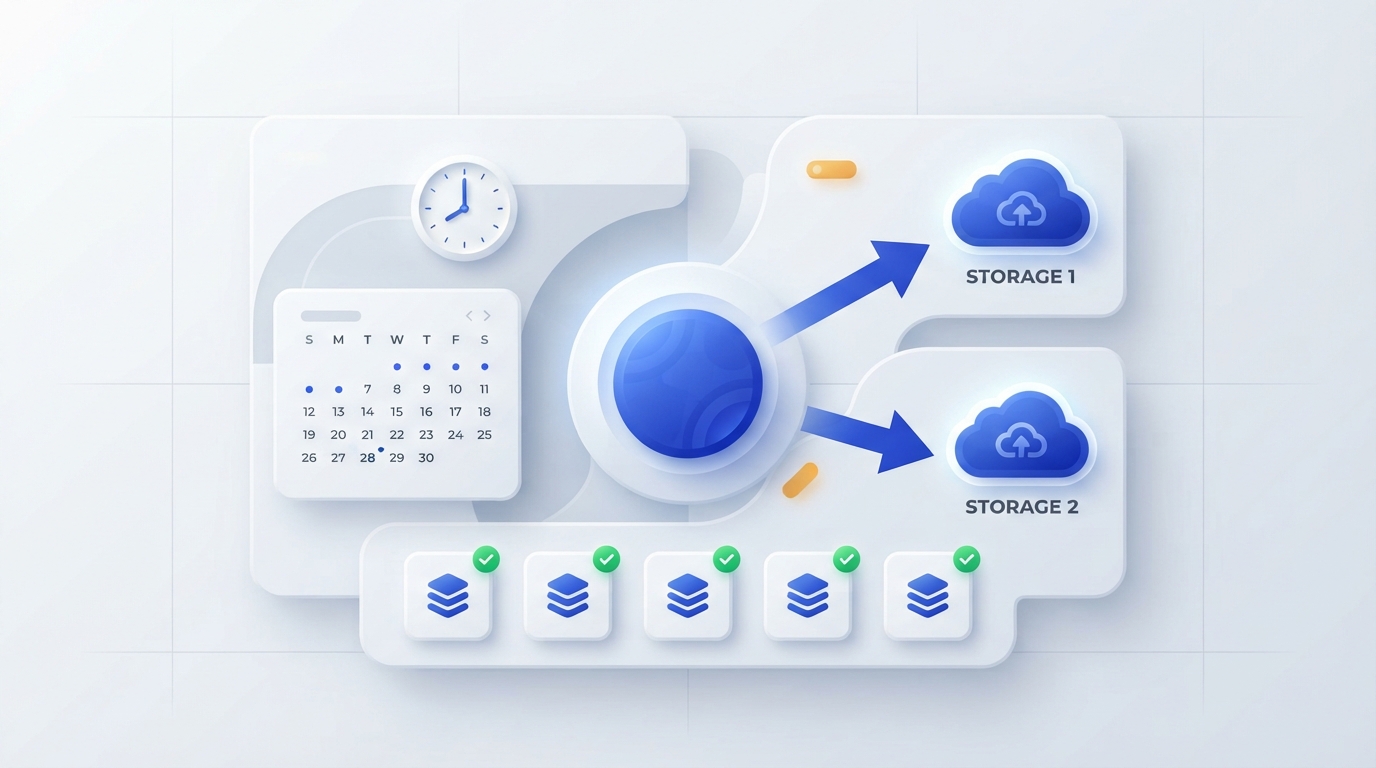
- Select a remote storage option such as Google Drive or Dropbox and follow the prompts to connect your account.
- Save your changes.
- Go back to the main tab and click Backup Now to create your first full backup.
- When it finishes, confirm that the backup appears in the list and in your remote storage.
Pros
- Quick to set up, with no technical knowledge needed
- Runs on a schedule so you do not have to remember
- Sends copies to storage outside your server
- Restoring is usually a few clicks
Cons
- Very large sites can hit limits on low-cost hosting
- Some features, such as incremental backups, are often paid
- It is one more plugin to keep updated
Method 2: Use Your Hosting Backup
Many hosting companies take automatic backups and let you restore them from the control panel. This is convenient, and it works even if you cannot log in to WordPress.
- Log in to your hosting account and open the control panel.
- Look for a section called Backups, Backup Manager or similar.
- Check how often backups are taken and how many days they are kept.
- Create a manual backup if the option exists.
- Download a copy to your computer so you hold one yourself.
Do not rely on host backups alone
Host backups are often stored on the same infrastructure as your site, retention can be short, and restores are sometimes a paid extra on entry-level plans. Read your host's backup policy so you know exactly what is covered. Treat it as a second layer, not your only one.
Method 3: Back Up Manually
A manual backup takes longer, but it teaches you where everything lives and it does not depend on any plugin.
Step 1: Download your files
- Connect to your site with an FTP program such as FileZilla, or open File Manager in your hosting panel.
- Open the folder that contains WordPress, often called
public_html. - Download the whole folder to your computer. In File Manager, you can compress it into a ZIP first to make the download faster.
Step 2: Export your database
- Open phpMyAdmin from your hosting panel.
- Select your WordPress database in the left column. The name is listed in
wp-config.phpnext toDB_NAME. - Click the Export tab.
- Keep the Quick method and SQL format, then click Export.
- Save the
.sqlfile in the same folder as your downloaded files, and add the date to the folder name.
How Often Should You Back Up?
The right schedule depends on how often your site changes. Ask yourself how much work you could afford to lose.
| Type of site | Database | Files |
|---|---|---|
| Personal blog, a few posts a month | Weekly | Monthly |
| Active blog, several posts a week | Daily | Weekly |
| Online shop or membership site | Several times a day or real time | Daily |
| Any site, before updates or theme changes | Take one right now | Take one right now |
Where to Store Your Backups
A simple guideline used in IT is the 3-2-1 rule: keep three copies of your data, on two different kinds of storage, with one copy off-site.
For a small blog, that can be as simple as:
- The live site on your hosting
- A scheduled copy in cloud storage
- An occasional copy downloaded to your computer or an external drive
How to Test a Backup
A backup you have never restored is only a hope. Test it once so you know the process before you need it.
- Create a staging site if your host offers one, or install a local WordPress site on your computer.
- Restore your latest backup there, not on your live site.
- Check that posts, images, menus and settings all appear.
- Note how long the restore took and any problems you met.
Common Mistakes to Avoid
- Keeping the only copy on the same server. If the server fails, the backup goes with it.
- Backing up files but not the database, or the other way round.
- Never testing a restore. Corrupt or incomplete backups are only discovered when it is too late.
- Keeping just one backup. If a problem went unnoticed for a week, yesterday's copy contains the same problem.
- Forgetting to back up before updates. This is the moment a backup is most likely to be needed.
- Leaving backup files in a public folder. They contain your database and should not be downloadable by anyone else.
Tips for Beginners
- Start with a plugin and remote storage, then add a manual copy every month or two.
- Add the date to every backup name.
- Protect the cloud account that holds your backups with a strong password and two-step verification.
- Write down the restore steps while your site is working, not when it is down.
Frequently Asked Questions
Does WordPress back up my site automatically?
No. WordPress itself does not create backups. You need a plugin, a hosting backup feature or a manual copy.
Is a free backup plugin enough?
For most small blogs, yes. A free plugin that backs up files and database on a schedule and sends them to remote storage covers the essentials.
Is the WordPress Export tool a full backup?
No. Tools → Export creates a file with your posts, pages and comments, but it does not include your theme, plugins, uploaded images or settings.
How many backups should I keep?
Keep several, not just the latest one. Many site owners keep at least a few weeks of copies so they can go back to a point before a problem started.
Can a backup slow down my site?
A backup uses server resources while it runs. Schedule it for a quiet time of day, and on large sites consider a plugin or service that supports incremental backups.
Conclusion
Backing up a WordPress site comes down to three habits: save both the files and the database, keep a copy away from your server, and test that you can restore it.
Set up a scheduled plugin backup today, check what your host provides, and take a manual copy before any big change. It takes less than an hour, and it turns a future disaster into a short inconvenience.
Read the official WordPress backup guide
Related Guides on ThemeZone
How to Change Your WordPress Theme Without Losing Content
A backup is the first step before any theme change.
How to Install a WordPress Theme
Free, premium and FTP methods explained.
Elementor Review
Is a page builder right for your site?


