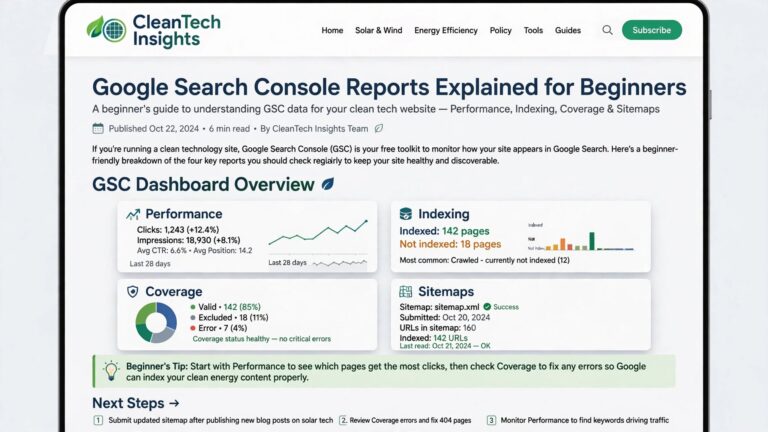
“Discovered – Currently Not Indexed” in Google Search Console: What It Means and How to Fix It
Google knows your page exists but hasn’t crawled it. Here is what Google says the status means, why it happens on small sites, which fixes help, and how long to wait.
You publish a post, submit the sitemap, and a week later Search Console lists the page under “Discovered – currently not indexed.” It isn’t an error and it isn’t a penalty. It means Google has the URL in its queue but hasn’t fetched the page yet, and on a small site the reason is rarely technical. This guide explains the status using Google’s own documentation and the public statements of its search team, then walks through the fixes worth your time.
Quick answer
- Google found the URL but has not crawled it. Google says this “is not necessarily bad,” and it often resolves on its own.
- On small sites it usually reflects how much value Google expects from the page and the site as a whole, and how well the page is linked.
- What helps: internal links, a clean sitemap, a healthy server, fewer thin pages, and patience. Request indexing for a handful of important pages, not hundreds.
What the status means
Google’s Page indexing report defines it precisely: “The page was found by Google, but not crawled yet. Typically, Google wanted to crawl the URL but this was expected to overload the site; therefore Google rescheduled the crawl. This is why the last crawl date is empty on the report.”
Its sibling, Crawled – currently not indexed, means Google did fetch the page and decided not to index it for now. Both sit in the report’s “Not indexed” group, about which Google says: “Don’t expect every URL on your site to be indexed” and “Not indexed is not necessarily bad.”
Why it happens, especially on small sites
Google’s crawl budget guide describes two things that decide how much Google crawls: the crawl capacity limit, which drops if your site “responds with server errors (5xx HTTP status codes)” or slows down, and crawl demand, which “varies based on a site’s size, update frequency, page quality, and relevance, compared to other sites.”
That guide is written for sites with a million-plus pages, or ten-thousand-plus pages that change daily. For a blog with a few hundred posts, capacity is almost never the problem; demand is. John Mueller of Google put it plainly in an office-hours answer that Search Engine Journal reported in July 2023: “In most cases though, it’s more about overall website quality.” Quality here means the site as a whole, not just the new post. Dozens of thin tag archives, near-duplicate posts, or auto-generated pages lower Google’s expectations for everything you publish next.
How to check a single page
Paste the URL into the search bar at the top of Search Console to open the URL Inspection tool. It shows whether the URL is on Google, when it was last crawled, and how Google found it. From there you can click Request indexing. Google is candid about what that does: “Submitting a request does not guarantee that the page will appear in the Google Index,” there is “a daily limit to how many index requests you can submit,” and, as its recrawl guide adds, “requesting a recrawl multiple times for the same URL won’t get it crawled any faster.”
Fixes that make a difference
-
Link to the page from your own site
Google’s SEO Starter Guide says “Google primarily finds pages through links from other pages it already crawled.” A post that exists only in the sitemap is easy to postpone. Add two or three links from relevant older posts; our guide to internal linking for blogs shows how to find the right spots.
-
Submit a clean sitemap
WordPress has published a sitemap at
/wp-sitemap.xmlsince version 5.5, and Rank Math provides one at/sitemap_index.xml. Submit it once in the Sitemaps report. Google says submitting a sitemap is “merely a hint: it doesn’t guarantee that Google will download the sitemap or use the sitemap for crawling URLs on the site,” so keep it to pages you actually want indexed and leave out tag archives and thin pages. -
Check that your server answers quickly and without errors
Open Settings → Crawl stats (the report is shown only for Domain properties and root-level URL properties). Google’s Crawl Stats report help notes that “if your site is responding slowly to requests, Googlebot will throttle back its requests,” and a rising server error rate does the same. If you see 5xx errors or slow responses, fix the hosting or caching problem first; our guide to diagnosing a slow WordPress site covers the usual causes.
-
Reduce the pages that add nothing
Set thin tag and author archives to noindex, merge near-duplicate posts with 301 redirects, and improve or remove posts that only repeat what other pages say; our guide to updating old blog posts covers that decision.
-
Request indexing for the pages that matter, then wait
Use Request indexing for a new cornerstone post or an important update, not for every URL in the list. Google says crawling “can take anywhere from a few days to a few weeks,” and in the same Search Engine Journal report Mueller described cases that took “a couple of months, a half a year, sometimes even longer than a half a year.” The work in steps 1 to 4 is the only part of that wait you control.
| What you see | Likely reason | Do this first |
|---|---|---|
| A few new posts from the last two weeks | Normal delay | Add internal links; request indexing for the most important one; wait |
| Most of the site, including older posts | Google isn’t convinced of the site’s value yet | Prune thin pages, merge duplicates, improve the best posts |
| Mostly tag, author, or filtered archive URLs | Low-value URLs in the sitemap | Noindex them and remove them from the sitemap |
| Crawl Stats shows 5xx errors or slow responses | Server capacity | Fix hosting, caching, or a misbehaving plugin |

Common mistakes
Frequently asked questions
Is “Discovered – currently not indexed” an error?
No. Google lists it under “Not indexed,” not under errors, and says the page may still be crawled later. It becomes a concern only when it covers most of your site for months.
How long does it take to resolve?
Anything from days to months. Google says crawling can take a few days to a few weeks after a request; Google staff have described waits of several months on sites that still need to earn trust.
What is the difference from “Crawled – currently not indexed”?
“Discovered” means Google hasn’t fetched the page yet. “Crawled” means it fetched the page and chose not to index it for now. The second is more clearly about the page’s content; the first is often about scheduling and overall site quality.
Conclusion
“Discovered – currently not indexed” is Google saying “not yet.” For a small site, what turns it into “yes” is the ordinary work of a good blog: link your posts together, keep the sitemap clean, keep the server healthy, remove pages that add nothing, and give Google time to notice.
Open the Page indexing report, look at which kinds of URL carry the status, and start with the table above. If the list is mostly archives, fix the sitemap today; if it is mostly posts, add internal links to the three you care about most and check again in two weeks.
Sources
- Page indexing report, Search Console Help
- URL Inspection tool, Search Console Help
- Ask Google to recrawl your URLs, Google Search Central
- Optimize your crawl budget, Google Search Central
- Build and submit a sitemap, Google Search Central
- Crawl Stats report, Search Console Help