Home › WordPress Guides › 301 Redirects in WordPress
WordPress GuidesFree tool inside
301 Redirects in WordPress: How to Fix Broken Links After Changing a URL
Changed a slug, merged two posts, moved to HTTPS or deleted a page that still gets clicks? A redirect tells browsers and search engines where the content went. This guide explains which redirect to use, three ways to add one in WordPress, and how to avoid the chains and loops that quietly waste traffic. A free rule builder turns your old-to-new URL list into ready-to-paste code.
Why a changed URL breaks more than you think
A URL is a promise. Every place it has ever been pasted — Google's index, a social post from two years ago, a forum answer, your own older articles, a newsletter sitting in someone's inbox — trusts that the address will keep working. When you rename a slug or delete a page, you break that promise everywhere at once, and nothing warns you.
The visible symptom is a 404 Not Found page. The invisible cost is bigger. Google treats a 404 as "this content is gone", drops the URL from its index after recrawling it, and the links other sites pointed at that address stop helping you. If you published the same content at a new URL, that new page starts from zero. You did the work twice and kept the credit once.
A redirect fixes both problems. The browser never shows an error, because it is sent straight to the new address. And when the redirect is permanent, Google's documentation treats it as a strong signal that the new URL should replace the old one in search results. Google's search team also said publicly in 2016 that 3xx redirects no longer lose PageRank. Done correctly, a redirect costs you almost nothing.
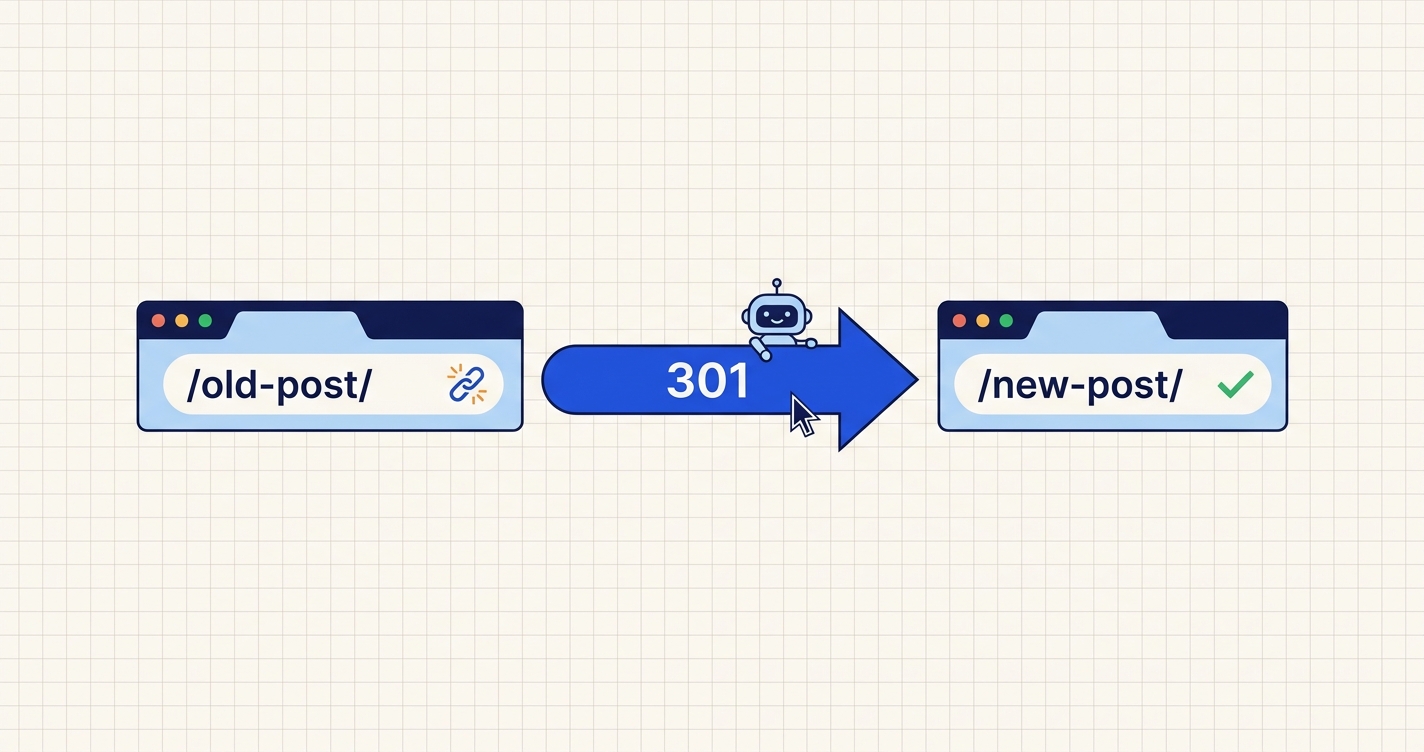
A redirect is a server response that says "not here, go there" — a 3xx status code plus a Location header — and the browser follows it automatically.
Common moments when a WordPress site needs one:
- You edited the permalink of a published post or page (see our guide to SEO-friendly URLs and slugs).
- You changed the whole permalink structure, for example from
/2026/10/05/post-name/to/post-name/. - You merged two thin posts into one stronger article while updating old content.
- You deleted a category, tag or product page that still ranks.
- You moved from HTTP to HTTPS, or from
wwwto non-www(or the reverse). - You changed domain names.
Redirect types: 301, 302, 307 and 308
All redirects use the same mechanism, but the status code changes what browsers may cache and what search engines conclude. For a blog, you will almost always want a 301.
| Code | Meaning | What Google does | Use it when |
|---|---|---|---|
| 301 Moved Permanently | The page lives at the new URL from now on. Browsers cache it aggressively. | Uses it as a strong signal that the new URL is canonical and shows the new URL in results. | Slug changes, merges, deletions with a replacement, domain moves, HTTPS. |
| 302 Found (temporary) | The page is elsewhere for now; keep asking the old URL. | Keeps showing the old URL; the redirect is not treated as a canonical signal. | A/B tests, maintenance pages, short seasonal detours. |
| 307 Temporary Redirect | Like 302, but the request method and body must not change (a POST stays a POST). | Treated as temporary. | Form submissions and APIs. Rare on a blog. |
| 308 Permanent Redirect | Like 301, but the method and body must not change. | Treated as permanent, like 301. | Permanent moves of URLs that receive form data. Rare on a blog. |
Browsers remember a 301 for a long time, often until the cache is cleared. If you test a redirect, get it wrong, and then "fix" it, your own browser may keep sending you to the wrong place. Test in a private window, or use the command-line check in the troubleshooting section, which never caches.
Decide what to redirect — and where
The destination matters as much as the redirect. Google's site-move guide warns against redirecting many old URLs to one irrelevant destination such as the home page, and says such redirects may be treated as soft 404s — in effect, as deletions. Pick the closest match for each URL.
Renamed page
Redirect the old slug to the new slug. One to one, always.
Merged posts
Redirect each retired post to the surviving article. If possible, point to the section anchor that now covers the retired topic, such as /seo-guide/#keywords.
Deleted page with a near equivalent
Redirect to the most relevant page: a sibling article, the category page, a product's replacement.
Deleted page with no equivalent
Do not redirect. Let it return a proper 404 (or 410 Gone) and make your 404 page helpful with search and popular posts.
Structure change
Redirect every old URL to its new counterpart with one pattern rule, not thousands of lines. Test the pattern on five real URLs before going live.
Domain or HTTPS move
Redirect the whole host while keeping the path, so http://old.com/post/ becomes https://new.com/post/.
Before writing a single rule, list the URLs that actually receive traffic or links. Google Search Console's Pages and Links reports are enough for most blogs; if your site is not connected yet, start with adding your WordPress site to Search Console. A missing redirect for a URL nobody visits is harmless; a missing redirect for a URL that earns 200 visits a month is a leak.
Three ways to add a redirect in WordPress
WordPress handles one case on its own: when you change the slug of a published post, it stores the old slug and its wp_old_slug_redirect() function sends visitors on to the new address. It does not do this for pages or other hierarchical content, and it does not cover permalink-structure changes, deleted content, category changes or custom paths. For everything else, use one of these methods.
| Method | Where it runs | Best for | Watch out for |
|---|---|---|---|
| Redirect plugin (Redirection, Rank Math's Redirections module, Yoast SEO Premium's redirect manager, Safe Redirect Manager) | Inside WordPress, after PHP loads | Beginners; dozens to a few hundred rules; logging 404s; no server files to edit | Slightly slower than a server rule; rules disappear if the plugin is removed, so keep an export |
| .htaccess (Apache or LiteSpeed hosting) | Web server, before WordPress loads | Site-wide rules (HTTPS, www, structure changes) and high-traffic URLs | One typo can take the whole site down; back up the file first; some hosts lock it |
| Nginx server block | Web server | VPS and Nginx-based hosts; the fastest option | Needs server access and a reload; managed hosts often provide a "Redirects" panel instead |
| Edge rules (Cloudflare Redirect Rules, host CDN rules) | CDN, before the request reaches your server | Domain moves, HTTPS, a handful of important URLs | Free plans cap the number of rules; easy to forget they exist later |
Use a plugin for one-off page redirects you add over time, and a server or edge rule for the few site-wide patterns (HTTPS, www, structure). Whichever you choose, keep a plain-text copy of every rule with your site notes. The builder below produces exactly that file.
Its free Redirections module (Rank Math SEO → Dashboard → Modules) does the same job as the Redirection plugin, so you do not need both. Pick one tool for page redirects and stick with it — two redirect managers fighting each other are a common cause of loops.
Free redirect rule builder
Paste your old and new URLs, one pair per line, and the builder writes the rules for your server or plugin. It also catches the problems that break redirects: duplicate sources, rules that point to themselves, chains (A → B → C), loops (A → B → A) and redirects to the homepage. Everything runs in your browser and nothing is uploaded. It is a text processor that follows fixed rules — not an AI — and it does not visit your site; the troubleshooting section shows how to test the result.
Redirect Rule Builder
Runs in your browser · no upload
Separate old and new with ->, =>, |, a comma or a tab. Paths (/old-post/) and full URLs (https://example.com/old-post/) both work. Lines starting with # are notes and are ignored.
Loading the redirect builder… If this message stays, your site is blocking inline scripts — see the troubleshooting note in the setup instructions.
Tip: press Ctrl + Enter (⌘ + Enter on a Mac) to build.
Apache rules also work on LiteSpeed hosting.
Rules match paths and assume WordPress runs at the root of your domain. Visitors' query strings (such as ?utm_source= tags) are passed on to the new URL by the server formats. Back up your .htaccess or server config, paste the rules, then test five real URLs in a private window.
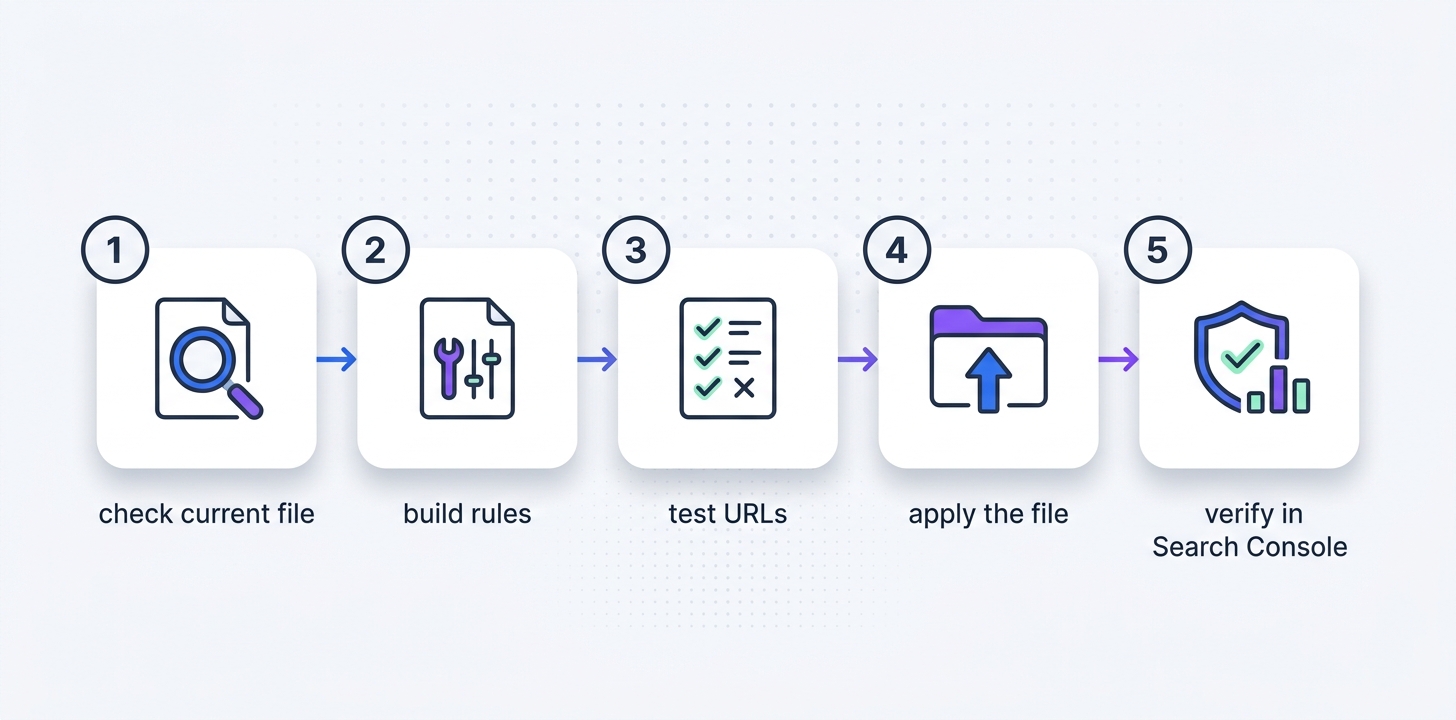
Step by step: adding your first redirects
Method A — with the Redirection plugin
- Back up first. Take a full backup before changing URLs or installing anything. Our WordPress backup guide covers the options.
- Install and activate. Plugins → Add New Plugin → search "Redirection" (by John Godley) → Install Now → Activate. In the setup wizard, keep "Monitor permalink changes" on and turn on logging so you can see 404 errors later.
- Check the defaults. Tools → Redirection → Options. Under the default URL settings, turn on "Ignore trailing slashes" and "Case insensitive". Set "Default query matching" to Pass, so links carrying
?utm_source=tags still redirect and keep their tracking. - Add a rule. Tools → Redirection → Add New. Source URL:
/old-slug/. Target URL:/new-slug/. Save it. - Import in bulk. For more than a handful, pick "Redirection plugin CSV" in the builder, download the file, then go to Tools → Redirection → Import/Export, choose the file and a group, and upload.
- Test. Open the old URL in a private window. You should land on the new URL with no stop at any page in between.
- Export a copy. Import/Export → Export → save the file with your site notes.
Method B — editing .htaccess (Apache or LiteSpeed)
- Find the file. In your host's file manager or over SFTP, open the folder that holds
wp-config.php. Turn on "show hidden files" —.htaccessstarts with a dot. - Download a backup copy before you change a single character.
- Paste the rules above the WordPress block. Use the builder's RewriteRule format and put the output before the line
# BEGIN WordPress. WordPress rewrites everything between BEGIN and END, so rules placed inside are lost. - Save and check the homepage at once. If you see a 500 error, upload your backup copy — a stray character is the usual cause.
- Test the redirected URLs in a private window, then with the command in the troubleshooting section.
Nginx ignores .htaccess files. Choose "Nginx server block" in the builder and paste the output near the top of the server { … } block for your site, then run nginx -t to check the syntax and reload. On managed hosts, look for a "Redirects" or "Rewrite rules" panel in the dashboard instead.
Redirect chains and loops
A chain is a redirect whose target is itself redirected. Chains grow naturally: you rename a post in 2024, rename it again in 2026, and the 2024 URL now takes two hops to arrive. Every hop is another network round trip for the visitor — on a slow mobile connection that can add a few hundred milliseconds — and another place where something can fail. Google's crawlers follow up to 10 hops, but Google's site-move guide asks you to redirect to the final destination directly and, where that is not possible, to keep chains short: ideally no more than three hops and fewer than five.
A loop is a chain that returns to its start. The browser shows "This page isn't working — redirected you too many times" and nobody reaches anything. Loops usually come from two rules written at different times in different tools — a plugin sending /blog/ to /news/ while an .htaccess line sends /news/ back to /blog/.
The fix for both is the same: every old URL should point directly at its final destination. When you change a URL that is already a redirect target, update the older rules to the new final URL. The builder's "Collapse chains" option does this for the list you paste; it cannot see rules already stored on your server, so review your plugin's rule list now and then.
A very common two-hop chain is http://example.com/post/ → https://example.com/post/ → https://www.example.com/post/. On Apache or LiteSpeed, one rule can send any non-canonical address straight to the final one (replace the host with yours, and drop the www condition if your site does not use www):
RewriteEngine On
RewriteCond %{HTTPS} off [OR]
RewriteCond %{HTTP_HOST} !^www\. [NC]
RewriteRule ^(.*)$ https://www.example.com/$1 [R=301,NE,L]
If your site sits behind Cloudflare or a host proxy that handles SSL, your server may always see HTTPS as "off" and this rule will loop. In that case, let the CDN or host force HTTPS instead.
How to find the 404s you do not know about
You cannot redirect a broken URL you have never seen. Four sources, from easiest to most complete:
- Google Search Console → Pages → "Not found (404)". URLs Google tried to crawl and could not load, including ones linked from other websites — exactly the traffic you want to keep.
- Redirection plugin → 404s. Logs requests from real visitors. Sort by count and fix the top entries first. Ignore the junk: bots probing
/wp-login.php.bakdo not need a redirect. - Server access logs. Most hosts let you download raw logs. Filter for status 404 and group by path.
- A crawl of your own site. A desktop crawler (Screaming Frog's free version handles up to 500 URLs) finds internal links that point at dead URLs. Fix those links at the source instead of relying on redirects; our internal linking guide explains why direct links beat redirected ones.
Make it a routine: once a month, open the two reports above, add redirects for anything with real traffic, and update internal links so they point at the final URL.
Common mistakes
| Mistake | What goes wrong | Do this instead |
|---|---|---|
| Redirecting everything to the homepage | Google may treat it as a soft 404; visitors bounce | Redirect to the closest matching page or return a proper 404 |
| Using 302 for a permanent move | The old URL keeps showing in search results | Use 301 (or 308) for anything permanent |
| Pasting rules inside the WordPress .htaccess block | WordPress overwrites them the next time permalinks are saved | Place custom rules above # BEGIN WordPress |
| Two redirect tools at once | Rules overlap and loops appear | Use one plugin (or module) for page redirects |
| Leaving old internal links in place | Every click takes a detour; crawlers waste requests | Search and replace old URLs in your content after redirecting |
| Changing the permalink structure without a pattern rule | Hundreds of 404s overnight | Add the structure redirect first, then change the setting, then test |
| Removing redirects "because they are old" | External links break again | Google's site-move guide says to keep them generally at least a year; keeping them longer costs little |
Troubleshooting
Check what the server really returns
Browsers cache redirects and plugins add their own layers, so the most reliable test skips both. On macOS or Linux, open Terminal; on Windows 10 or 11, open Command Prompt and type curl.exe instead of curl:
curl -I -L https://www.example.com/old-slug/-I asks for headers only and -L follows redirects. You want to see exactly one 301 (or 308) status line with a Location: header, followed by one 200. Two or more 3xx lines mean a chain. Online header checkers do the same job if you prefer a browser.
The redirect does not fire
- Trailing slash mismatch: the rule says
/old-slugbut visitors arrive at/old-slug/. Keep the builder's trailing-slash option on, or tick "Ignore trailing slashes" in your plugin. - Letter case:
/Old-Slug/is a different path on most servers. Turn on case-insensitive matching in the plugin if old links used capitals. - Caching: a caching plugin or CDN served a stored copy of the old page. Purge the cache for that URL.
- Rule order: on Apache, your rules must sit above
# BEGIN WordPress. On Nginx, regex locations are checked in order, so keep the generated block near the top of the server block. - Wrong file: on Nginx hosting, .htaccess is ignored entirely.
Links with tracking tags still show a 404
If /old-slug/ redirects but /old-slug/?utm_source=newsletter does not, your plugin is matching query strings exactly. In Redirection, set "Default query matching" to Pass (or change it on that one redirect). The server formats from the builder already pass query strings through.
The whole site shows a 500 error
Almost always a syntax error in .htaccess. Upload your backup copy, then add rules back a few at a time. Common causes are a rule pasted inside the WordPress block, a missing RewriteEngine On line, or a stray space inside a URL. If you see WordPress's "There has been a critical error" screen instead, the cause is PHP rather than the server — our critical error guide covers that.
"Redirected you too many times"
A loop. Turn off your redirect plugin for a moment; if the loop disappears, a plugin rule and a server rule are fighting. A frequent culprit is forcing HTTPS in .htaccess while Cloudflare or a host proxy handles SSL (see "HTTPS plus www" above). Let only one layer force HTTPS.
Google still shows the old URL
Normal for a few weeks. Make sure the old URL is not blocked in robots.txt — Google has to crawl it to see the redirect. Inspect the new URL in Search Console, request indexing, and keep your sitemap listing only final URLs.
Frequently asked questions
Does a 301 redirect lose PageRank?
Google's search team said publicly in 2016 that 3xx redirects no longer lose PageRank, and Google's documentation describes a permanent redirect as a strong signal that the new URL should be shown instead of the old one. Losses people notice usually come from redirecting to an unrelated page, from long chains, or from the new page having genuinely different content.
How long should I keep a redirect?
As long as you can. Google's site-move guide says to keep redirects for as long as possible, generally at least one year. External links never expire, and a redirect rule costs almost nothing to keep.
Does WordPress redirect old slugs automatically?
Partly. When you change the slug of a published post, WordPress stores the old slug and redirects it. It does not do this for pages, and it does not cover permalink-structure changes, deleted content, or category and tag changes.
Should I redirect a deleted post to the homepage?
Usually not. Google may treat redirects to an unrelated homepage as soft 404s, and visitors find them confusing. Redirect to the closest related page if one exists; otherwise let the URL return a real 404 and make your 404 page helpful.
Plugin or .htaccess — which is faster?
A server rule answers before WordPress starts, so it responds sooner; how much sooner depends on your hosting. For a few hundred rules on a normal blog, visitors are unlikely to notice. Choose the method you can maintain safely and treat speed as a tie-breaker.
What is the difference between a redirect and a canonical tag?
A redirect moves the visitor. A canonical tag only tells search engines which of several similar pages to prefer, while every version stays reachable. Use a redirect when the old page should no longer exist, and a canonical tag when both pages must stay live, such as a printable version.
Can I redirect a URL with a query string, like ?p=123?
Yes. Choose the RewriteRule or Nginx format in the builder and it writes a rule that checks the query string. Apache's RedirectMatch cannot see query strings, and the Redirection plugin needs its query matching set to Exact for that one redirect.
Conclusion and next step
Redirects are the unglamorous side of running a website, and also one of the few SEO jobs with an immediate, visible result: a 404 becomes a visit, and a page that lost its rankings gets a chance to recover them. Use a 301 for anything permanent, send each old URL directly to its closest match, keep the rules for the long term, and check for chains now and then.
Next step: open Google Search Console, copy the URLs from the "Not found (404)" report into the builder above, and ship your first batch of redirects today. If you are about to change your permalink structure or domain, try it on a copy of your site first — our guide to creating a WordPress staging site shows how.
Related guides on ThemeZone
Sources
- Google Search Central — Redirects and Google Search
- Google Search Central — Site moves with URL changes (chains, soft 404s, keeping redirects for a year)
- Google Search Central — How HTTP status codes affect Google Search (10 redirect hops)
- MDN Web Docs — Redirections in HTTP
- Apache HTTP Server — mod_rewrite and mod_alias (RedirectMatch)
- Nginx — location directive
- WordPress Developer Resources — wp_old_slug_redirect()
- Redirection plugin — Import and export (CSV format)


