Is It Worth Automating? How to Decide Which Tasks to Automate
Everyone has spent an afternoon building a clever automation for a job that took four minutes a month. Everyone has also spent two years copying the same numbers between the same two spreadsheets every Monday. Both are mistakes, and they come from skipping the same small calculation.
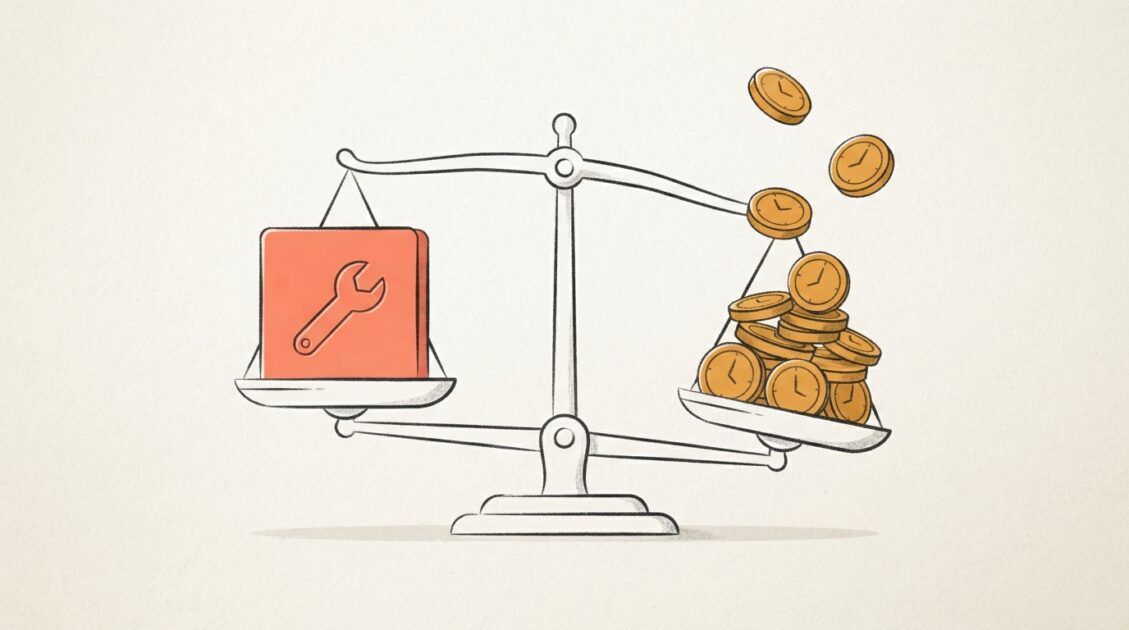
A task is worth automating when the time it saves, after subtracting upkeep, pays back the setup time soon enough to matter. Multiply minutes per run by runs per week to get the weekly cost, estimate honest setup and maintenance time, and work out the break-even point. Under two months is an easy yes. Over two years is usually a no, unless the automation also prevents costly errors or removes a job people hate.
01The two ways people get automation wrong
The first is over-automating. Building an automation is satisfying in a way that doing the task is not, so it is easy to justify. You connect three apps, write a script, handle the edge cases, and feel productive the whole time. Then the task comes up twice more before the process changes and the automation is abandoned.
The second is under-automating. A task that takes ten minutes never feels worth interrupting your day to fix. So it gets done by hand, again and again, and nobody adds it up. Ten minutes every working day is more than forty hours a year: a full working week spent on something a rule could have handled.
Both errors come from judging by feel. The task that annoys you most is not always the one that costs most, and the automation that sounds most impressive is rarely the one that pays back fastest. A few minutes of arithmetic replaces the guess.
The webcomic xkcd published a chart titled "Is It Worth the Time?" showing how long you can spend making a routine task more efficient before you are spending more time than you save, over five years. The logic in this article is the same idea, with maintenance and non-time benefits added.
02The four numbers that decide it
Minutes per run
How long the task takes each time, including opening the tools and checking the result. Time it once; memory underestimates.
Runs per week
How often it happens. Count over a real fortnight, not a guess.
Setup time
Hours to build, test and document the automation. Take your first estimate and double it.
Upkeep
Minutes per month to fix it when an app updates, a login expires or the input changes shape.
There is a fifth factor that is easy to miss: how much of the task the automation really removes. Few automations take a task to zero. You may still review the output, handle exceptions or press the button that starts it. If a 20-minute task becomes a 5-minute check, you have saved 75%, not 100%.
The formula
Weekly time saved = minutes per run × runs per week × share automated.
Net weekly saving = weekly time saved − weekly upkeep.
Break-even = setup time ÷ net weekly saving.
A worked example
A freelancer sends a weekly report to six clients. Each takes 12 minutes to assemble from a dashboard and email.
- Weekly cost: 12 minutes × 6 runs = 72 minutes.
- A template plus a scheduled export would remove about 80% of that: 58 minutes saved a week.
- Upkeep: perhaps 20 minutes a month, or about 5 minutes a week. Net saving: 53 minutes a week.
- Setup: 5 hours, including testing with one client first.
- Break-even: 300 minutes ÷ 53 ≈ 5.7 weeks.
After six weeks the automation is in profit, and over a year it returns about 41 hours net of setup. That is a clear yes. Change one number, say only two clients instead of six, and break-even moves out to roughly 21 weeks. Still reasonable, but no longer urgent.
03Automation payback calculator
Move the sliders to match your task. The results update as you go.
Automation Payback Calculator
Plain arithmetic running in your browser, using the formula above. It measures time only. The next section covers benefits it cannot count.
Any currency. Leave empty to see time only.
04Reasons to automate that are not about time
The calculator answers one question. Sometimes the time case is weak and the automation is still right, because of something a stopwatch does not capture.
| Benefit | When it applies | Example |
|---|---|---|
| Fewer errors | Mistakes are costly or embarrassing | Copying invoice totals by hand; one transposed digit takes an hour to trace |
| Reliability | The task must happen even when you are ill or away | Nightly website backups |
| Speed of response | Delay costs you business | An instant confirmation when someone submits an enquiry form |
| Attention | The task interrupts focused work | Manually checking an inbox for one type of message |
| Consistency | Several people do it slightly differently | File naming, client onboarding steps |
| Record keeping | You need a trail of what happened and when | Logging form entries to a spreadsheet automatically |
Backups are the clearest case. Taking a manual backup might cost five minutes a week, which on time alone barely justifies an hour of setup. The real value is that the automated version runs on the week you forget, which is the week it matters.
If a missed or botched run would cost more than the entire setup time, automate it regardless of what the time calculation says.
05Which tasks make good candidates
Good candidates
- Same steps every time
- Clear trigger: a time, a form, a new file
- Input arrives in a consistent format
- Easy to check whether it worked
- Happens weekly or more often
- Process has been stable for months
Poor candidates
- Needs judgement each time
- Changes shape from run to run
- Process is new or still being redesigned
- Happens a few times a year
- A mistake would be serious and hard to spot
- Depends on a tool you may soon replace
Typical wins for a small website or business:
- Scheduled backups and update notifications for a WordPress site.
- Saving form submissions to a spreadsheet and sending an acknowledgement.
- Email filters and rules that label, file or forward routine messages.
- Text-expansion snippets for replies you type every week.
- Recurring invoices and payment reminders.
- Scheduled social posts for content you have already written.
- A weekly export of analytics figures into a standing report.
Notice how unglamorous these are. The best first automations use features already built into tools you pay for.

06Choosing the right kind of tool
Pick the simplest option that does the job. Each step up this list adds power and also adds setup time and things that can break.
| Level | What it is | Best for | Watch out for |
|---|---|---|---|
| 1. Built-in features | Rules, filters, templates, schedules and recurring items inside an app you already use | Most personal and small-business tasks | Limited to that one app |
| 2. Text and keyboard tools | Text expanders, clipboard managers, keyboard shortcuts, saved replies | Repeated typing and small manual sequences | Works only on your device |
| 3. No-code connectors | Services that link apps: "when this happens there, do that here" | Moving data between two or three apps | Per-task pricing, and breakage when an app changes |
| 4. Spreadsheet formulas and macros | Formulas, pivot tables, recorded macros, simple scripts | Recurring calculations and reports | Hard for others to understand later |
| 5. AI assistants | Using a language model for a drafting, sorting or summarising step | Tasks with messy text input | Output needs checking; not fully hands-off |
| 6. Custom scripts | Code you or a developer write and host | High-volume or unusual jobs | Highest setup and upkeep; needs someone to maintain it |
On level 5: AI is useful for the fuzzy parts of a task, such as drafting a reply or pulling key points out of a long email, but it does not remove the need for review. Count that review time when you estimate the share automated. Our AI content workflow shows where a human check belongs, and if you are paying per request, our guide to AI tokens and context windows explains what drives the cost.
Connecting apps means granting one service access to another. Give each connection the minimum access it needs, use a unique password and two-factor authentication on the automation account, and review connected apps a couple of times a year. See our guide to securing your online accounts.
07How to automate a task safely
- Do it by hand once more and write down every step. Include the small ones: which tab, which filter, which file name. Gaps in this list are where automations fail.
- Simplify first. Ask whether each step is needed at all. Removing a pointless step beats automating it.
- Standardise the input. Agree one format for dates, names and files. Inconsistent input is the most common reason automations break.
- Start with the smallest useful piece. Automate one stage, not the whole chain.
- Test on copies. Use sample data or a duplicate sheet, never live client records, until it works three times in a row.
- Run it alongside the manual process for a cycle or two and compare results.
- Add a failure signal. Make sure you are told when it does not run: an email on error, or a simple check that the expected output exists.
- Write a five-line note. What it does, where it lives, which accounts it uses, how to switch it off, and when you last checked it.
- Review after a month. Compare the real time saved with your estimate and decide whether to extend it.
08Common mistakes
- Automating a broken process. You get the same bad result, faster and with less visibility.
- Underestimating setup. The first 80% takes an hour. The edge cases take the rest of the day.
- Ignoring upkeep. Apps change their interfaces and connections expire. Something that "runs itself" still needs an owner.
- No way to tell it failed. A silent failure is worse than no automation, because you have stopped checking.
- Building for rare cases. Handle the common path automatically and deal with exceptions by hand.
- Stacking tools. Five subscriptions, each automating one small thing, cost money and attention. Check built-in features first.
- Keeping it in one person's head. If only you know how it works, it stops working the day you are unavailable.
- Counting saved minutes as free time. Twelve saved minutes scattered through a week are not the same as one focused hour. Savings are most real when they remove whole interruptions.
09Decision checklist
10FAQ
Work out the weekly time it costs, estimate setup and upkeep honestly, and calculate break-even. If the automation pays for itself within a few months, or prevents errors that are expensive, it is worth doing.
Under two months is an easy decision. Two to six months is usually worthwhile if the process is stable. Beyond a year or two, the process is likely to change before you see the return, so you need a reason other than time.
Tasks that need fresh judgement each time, that happen rarely, that are still changing, or where a mistake would be serious and hard to notice. Personal communication that people expect to come from you also belongs on this list.
No. Built-in rules, templates, schedules and no-code connector services cover most everyday automations. Code becomes useful for high-volume or unusual jobs.
AI tools can handle steps that involve reading or drafting text, which older automation could not. They still make mistakes, so plan for a review step and count that time. Treat AI as one component of an automation, not a replacement for checking the result.
It depends on how many separate services it connects. A filter inside one app may need none for years. A chain across three apps can need attention several times a year when one of them changes. Check each automation at least twice a year.
The task with the shortest break-even that uses a tool you already have. An early, simple win teaches you how long setup really takes and makes later estimates more accurate.
11Conclusion
Whether a task is worth automating comes down to four numbers and one honest question. Time the task, count how often it happens, estimate setup and upkeep without optimism, and look at the break-even. Then ask whether errors, reliability or interruptions change the answer. Start with the smallest, most boring candidate using a tool you already own, confirm the saving after a month, and let that result guide the next one.
Further reading
Next step
List the five things you did by hand more than once this week and run each through the calculator. If one of them is producing content, a written brief removes a lot of rework before any automation does: see our content brief template.