
Open the theme directory in WordPress today and you will see two kinds of themes sitting side by side. They can look identical in a demo, yet they are edited in completely different ways. Pick one without knowing the difference and the tutorials you follow may not match the screens in your own dashboard.
This guide compares block themes vs classic themes in plain English: what each one is, how to tell which you have, what changes in day-to-day use, and which is the better choice for a new site.
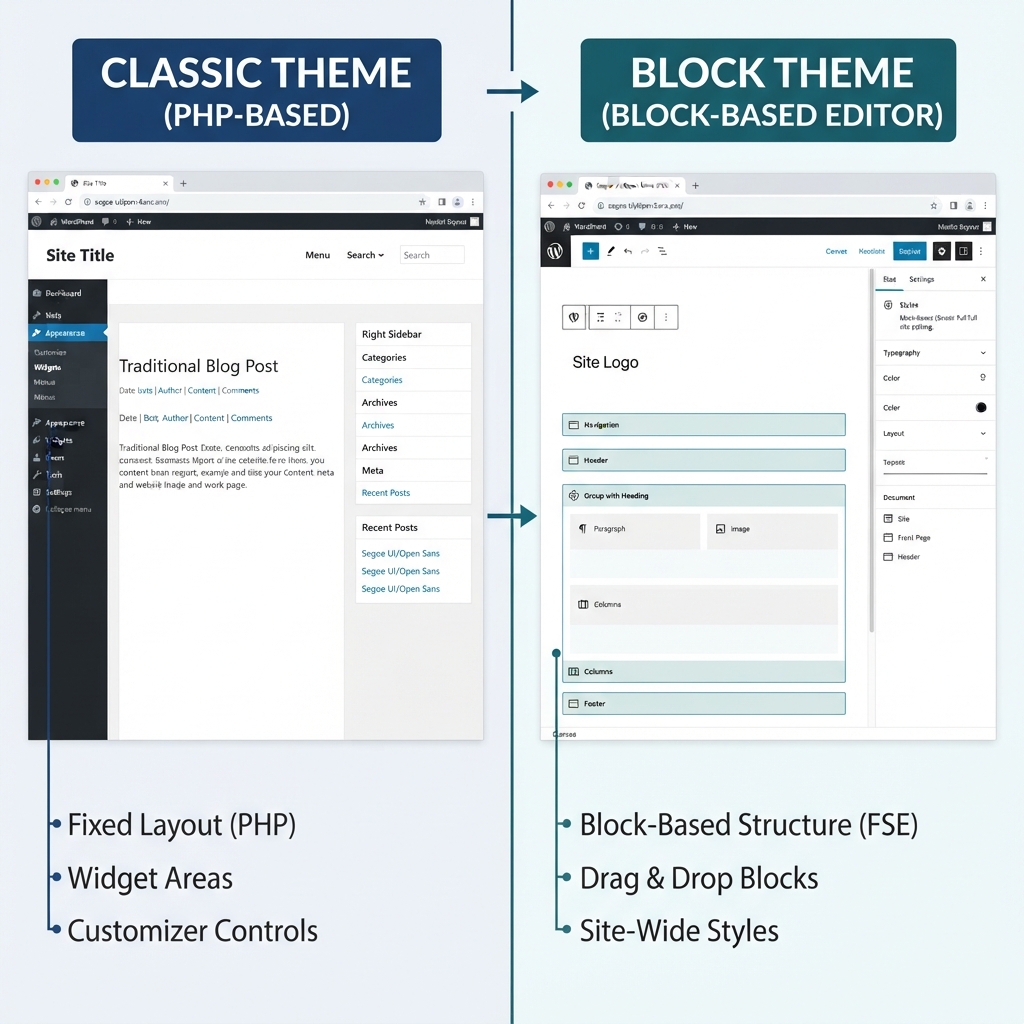
Quick answer: A classic theme is customized through the Customizer, widgets and menu screens. A block theme is customized through the Site Editor, where the header, footer and every template are built from blocks. Both are fully supported by WordPress. Block themes suit people who want to design the whole site visually without extra tools. Classic themes suit people who rely on a page builder, an established theme's own options, or older tutorials and plugins.
What Is a Classic Theme?
Classic themes are the original kind of WordPress theme. Their templates are written in PHP, and the theme developer decides which parts of the design you are allowed to change.
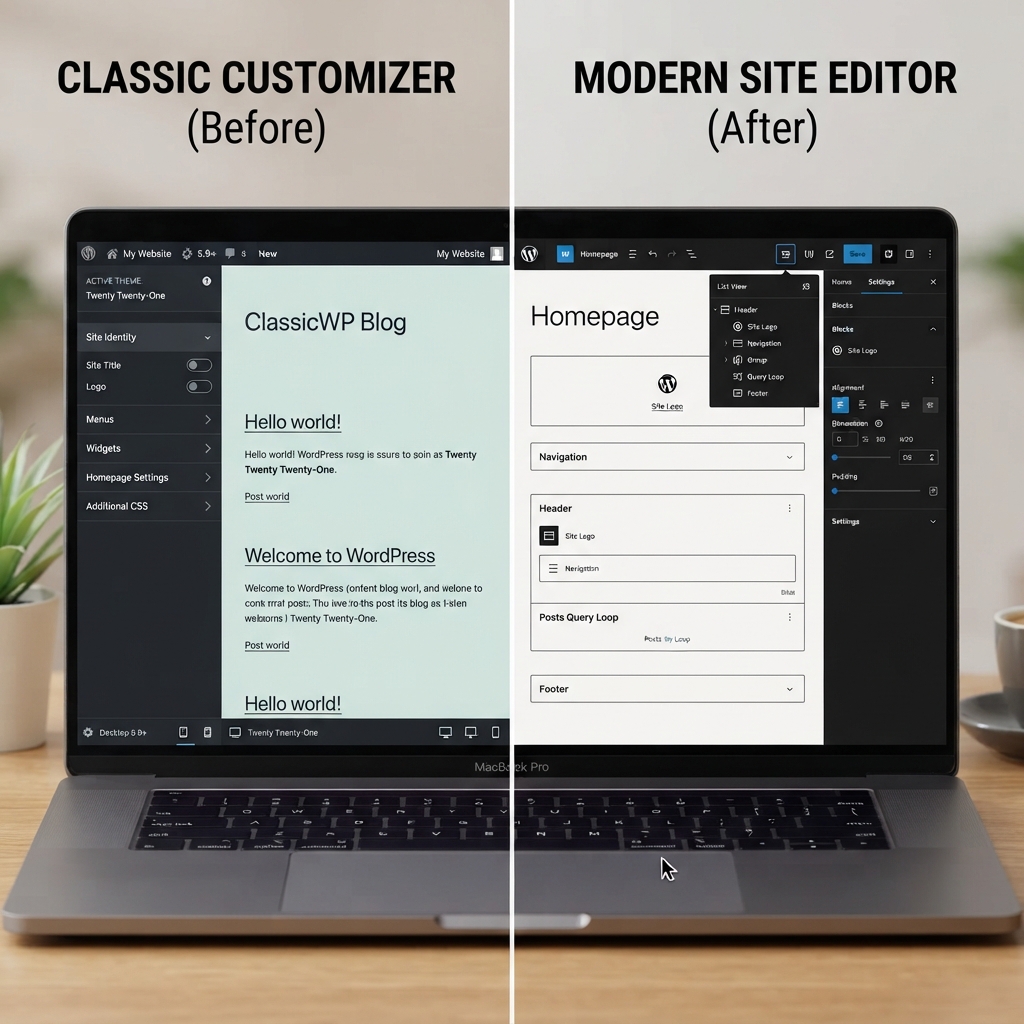
You customize a classic theme in three main places:
- Appearance → Customize for colors, fonts, logo, layout and other options the theme provides.
- Appearance → Widgets for sidebars and footer areas.
- Appearance → Menus for navigation.
If the option you want is not in the Customizer, you usually need custom CSS, a page builder or code changes to get it. That is the main limitation, and also the reason classic themes feel predictable: the structure stays the way the developer built it.
Most themes released before 2022 are classic, and many popular multipurpose themes still are. Twenty Twenty-One was the last default WordPress theme built this way.
What Is a Block Theme?
Block themes arrived with WordPress 5.9 in early 2022, along with a feature called Full Site Editing. Twenty Twenty-Two was the first default theme of this type, and the default themes released since then have all been block themes.
In a block theme, the whole site is made of blocks, not only your posts and pages. The header is a group of blocks. The footer is a group of blocks. The template that displays a single blog post is a set of blocks too. You edit all of it in one place: Appearance → Editor, known as the Site Editor.
A few terms you will meet there:
- Templates control the layout of a type of page, such as single posts, the blog home or the 404 page.
- Template parts are reusable sections such as the header and footer.
- Styles set colors, typography and spacing for the entire site in one panel.
- Patterns are ready-made block layouts you can insert and then edit.
Behind the scenes, a file called theme.json stores the theme's default styles and settings. You do not need to open it to use a block theme.
How to Tell Which Type of Theme You Have
You can check in a few seconds from your dashboard:
- Open the Appearance menu.
- If you see Editor near the top, your active theme is a block theme.
- If you see Customize, Widgets and Menus instead, it is a classic theme.

When you are browsing for a new theme on WordPress.org, the theme directory has a separate Block Themes tab, so you can see only that type before you install anything.
Some classic themes have adopted individual block features while keeping the Customizer. These are often called hybrid themes. If your dashboard shows the Customizer as the main design tool, treat the theme as classic.
Block Themes vs Classic Themes: The Key Differences
The table summarizes how the two types differ in everyday use. Individual themes vary, so read it as a general guide.
| Point | Classic theme | Block theme |
|---|---|---|
| Main design tool | Customizer | Site Editor |
| Header and footer | Fixed layouts with a set of options | Fully editable with blocks |
| Menus | Appearance → Menus | Navigation block |
| Sidebars and footer content | Widget areas | Blocks placed directly in templates |
| Changing a post or archive layout | Needs theme options, a builder or code | Edit the template visually |
| Site-wide colors and fonts | Whatever the theme exposes | Styles panel, down to individual block types |
| Tutorials and older plugins | Very widely covered | Growing, but some older guides do not apply |
Customization
With a classic theme you work inside the limits the developer set. That can be a relief when you only want to pick colors and upload a logo. It becomes frustrating when you want to move the logo, add a second menu row or change how post dates are displayed, and no option exists for it.
A block theme removes most of those limits. If you can see it on the page, you can usually click it and change it. The trade-off is responsibility: it is just as easy to remove something important from a template by accident. The Site Editor lets you reset a template to the theme's original version, which is worth remembering if an experiment goes wrong.
Menus, widgets and sidebars
This is where people switching from a classic theme get lost. A block theme has no Widgets screen and no Menus screen. A sidebar is a column in a template with blocks inside it. A menu is a Navigation block in the header. The tasks are the same, but they have moved into the editor.
Performance
Block themes are able to load styles only for the blocks a page actually uses, and many are built with very little extra code. That can help loading times. It is not a guarantee: a carefully built classic theme can be just as fast, and a heavy plugin stack or oversized images will slow down either type. Judge the specific theme, not the category.
Page builders
Page builders were created to give classic themes the visual control they lacked, and most builder tutorials assume a classic theme underneath. If you plan to design with a builder, a lightweight classic theme is the more common pairing. Our Elementor review covers what that workflow looks like for beginners.
With a block theme, the Site Editor already does much of what a builder does, so adding one on top is often unnecessary.
Which Should You Choose?
A block theme is a good fit if you:
- Are starting a new site and want to learn the current WordPress way of working.
- Want to edit the header, footer and post layouts without code or a builder.
- Prefer a small setup with few plugins.
- Are comfortable with the block editor you already use for writing posts.
A classic theme is a good fit if you:
- Intend to build pages with a page builder.
- Want a fixed, proven layout with a short list of options to set.
- Use plugins that add widgets or Customizer settings and have not been updated for block themes.
- Already run a classic theme that works well. There is no need to switch a working site only because block themes are newer.
Price is a separate question from type. Both kinds come in free and paid versions, and our comparison of free vs premium WordPress themes explains how to weigh that decision.
Switching Between Classic and Block Themes
You can move from one type to the other, and your posts, pages and media stay in place. What does not carry over is the design layer:
- Widgets do not appear automatically in a block theme. You rebuild sidebar and footer content with blocks.
- Menus may need to be selected again inside the Navigation block.
- Customizer settings such as colors, fonts and layout choices belong to the old theme and are not applied to the new one.
- Custom CSS added in the Customizer is stored for the old theme. Copy it first. Block themes have their own Additional CSS field inside the Styles panel of the Site Editor.
Because of this, treat the switch as a small redesign, not a one-click change. Take a full backup, test on a staging copy if your host offers one, and note down your current widgets and menu structure before you start. The full process is in our guide to changing a WordPress theme without losing content.
Installing works the same way for both types. If you have not done it before, see how to install a WordPress theme.
Common Mistakes to Avoid
- Following a tutorial written for the other type. If a guide says "go to Appearance → Customize" and you cannot find it, the guide is for classic themes. Search for the same task with "Site Editor" or "block theme" added.
- Deleting part of a template by accident. In the Site Editor, removing the Content block or the Query Loop from a template makes posts disappear from the front end. Reset the template to restore it.
- Editing a template when you meant to edit a page. A template change affects every page that uses it. Check the label at the top of the editor before you make changes.
- Assuming block themes are automatically faster. Test the actual theme with your own content.
- Switching type on a live site without a backup. Widgets and Customizer settings will not follow you, so keep a way back.
Conclusion
Classic and block themes do the same job in two different ways. A classic theme gives you a finished structure and a list of options. A block theme gives you the structure itself to edit. Neither is being removed from WordPress, and both can produce a fast, good-looking site.
For a brand-new site with no page builder, a well-maintained block theme is a sensible starting point. If you prefer a builder, depend on older plugins or already have a classic theme that works, staying classic is a perfectly sound choice. Check which type you have, choose based on how you like to work, and back up before you switch.
Frequently Asked Questions
What is the main difference between a block theme and a classic theme?
A classic theme is customized through the Customizer, widgets and menu screens, within limits set by the developer. A block theme is customized in the Site Editor, where the header, footer and all templates are made of editable blocks.
Are classic themes going away?
WordPress continues to support classic themes, and many widely used themes are still classic. New default WordPress themes are block themes, but there has been no announcement that classic themes will stop working.
Are block themes better for SEO?
Theme type alone does not decide rankings. Content quality, page speed and usability matter more. A lightweight theme of either type can support good SEO, and a slow or poorly built one can hurt it.
Can I use Elementor with a block theme?
Page builders can generally run on block themes, but they are most often paired with lightweight classic themes, and most tutorials assume that setup. Check the builder's own documentation for its current recommendations before you decide.
Where is the Customizer in a block theme?
Block themes use Appearance → Editor instead, so the Customize link is normally hidden. It may reappear if a plugin you have installed still relies on it.
Will I lose my content if I switch from a classic theme to a block theme?
No. Posts, pages and media stay in place. Widgets, menu assignments and Customizer settings do not transfer, so you will need to rebuild those parts in the Site Editor.
Are block themes good for beginners?
Yes, especially for people who already write posts in the block editor, because the same skills apply to the whole site. Beginners who prefer a fixed layout with fewer decisions may find a classic theme simpler at first.
How do I find block themes in WordPress?
The theme directory on WordPress.org has a Block Themes tab that lists only this type. After installing a theme, you can confirm it by checking whether Appearance → Editor appears in your dashboard.


