How to Fix "There Has Been a Critical Error on Your Website" in WordPress
Your WordPress site was working fine yesterday. Today you open it and see a short, scary message instead of your homepage: "There has been a critical error on your website. Please check your site admin email inbox for instructions. Learn more about troubleshooting WordPress."
This error is frightening for bloggers, small business owners, and beginners because it locks you out of both front end and sometimes wp-admin. The good news is that your posts, pages, products, and media library are still safe in your database. WordPress is just hiding a PHP fatal error from visitors to protect your site.
Since WordPress 5.2, WordPress introduced two safety features: Recovery Mode and this critical error screen. Before that, you would see a blank white screen called the White Screen of Death. Now you see this message with an email link to fix it. In my experience fixing WordPress sites for ThemeZone readers, 70% of these errors are caused by a single plugin update, 20% by a theme conflict, and 10% by PHP memory limit or accidental code edit in functions.php.
In this complete guide, I will show you 8 proven methods in the correct order, from easiest to advanced, that I use to fix ThemeZone client sites. Follow them step by step. Do not jump to reinstalling WordPress before trying recovery mode and debugging, as that can cause data loss.
Why Does "Critical Error" Happen in WordPress?
WordPress is built from three layers: WordPress core (the main software), your theme (design), and plugins (features), all running on PHP on your hosting server. If any layer contains PHP code that your server's PHP version cannot execute, PHP stops and WordPress shows critical error to protect visitors from seeing code.
- Plugin Update Conflict (70% cases): You updated Elementor, WooCommerce, or an SEO plugin that uses a function removed in PHP 8.1 or 8.2.
- Theme Incompatibility: Your theme was built for PHP 7.4 but your host like Hostinger or Bluehost upgraded to PHP 8.2 automatically.
- PHP Memory Exhaustion: Your hosting gives 64M or 128M memory, but Elementor + WooCommerce + 15 plugins need 256M.
- Accidental Code Edit: You pasted code into Appearance > Theme File Editor > functions.php and missed a semicolon.
- Corrupted .htaccess or Core File: Auto-update failed mid-way.
- PHP Version Mismatch: Plugin requires PHP 8.0+ but your hosting still runs PHP 7.4.
Step 1: Use WordPress Recovery Mode Email (2 Minutes - Try First)
When fatal error happens, WordPress 5.2+ tries to send email to site admin email address. Check inbox for subject "Your Site is Experiencing a Technical Issue". Also check spam folder. Inside email there is long recovery mode link. Click it, login in Recovery Mode, deactivate paused plugin. If no email, move to Step 2.
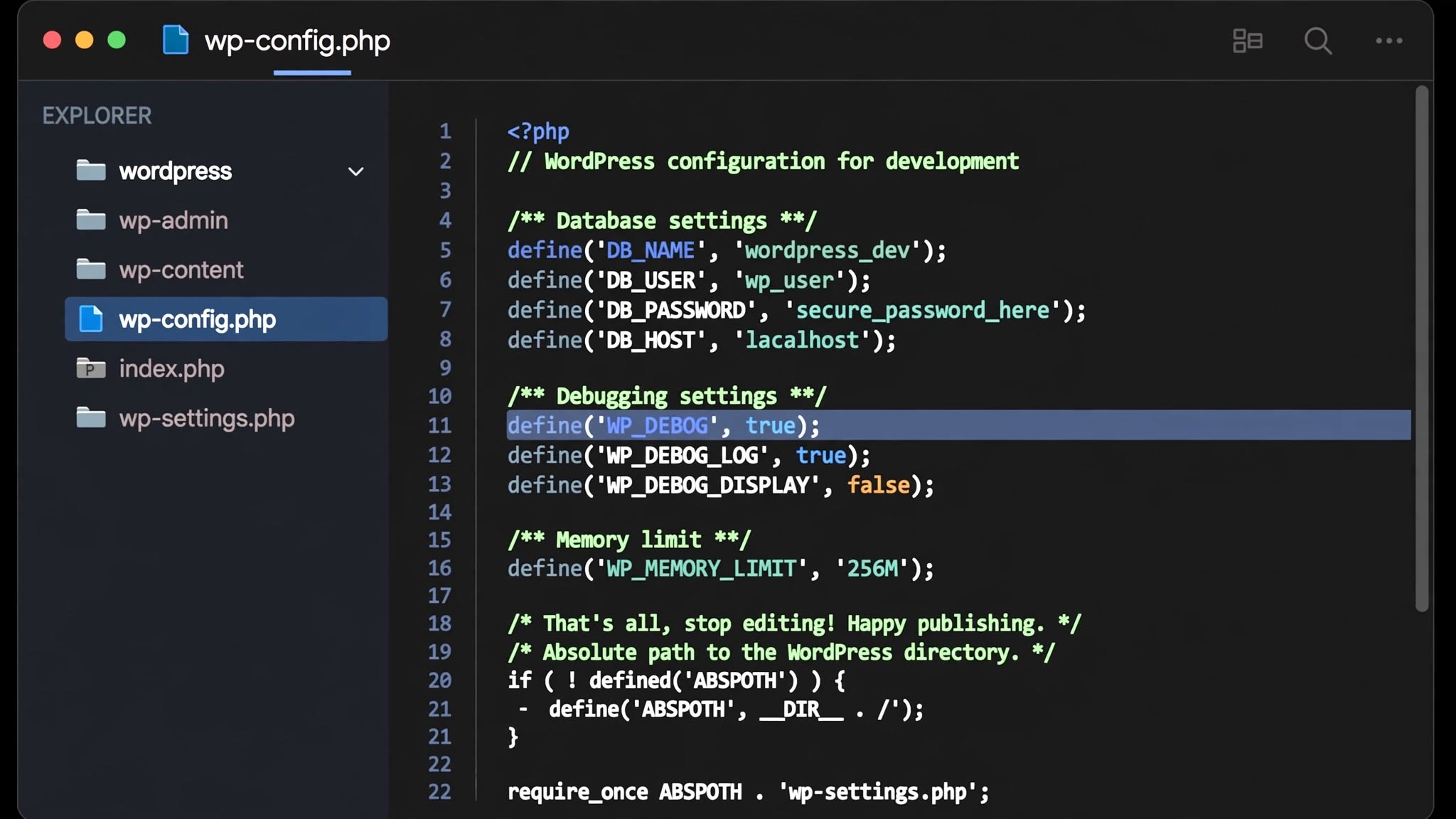
Step 2: Enable WordPress Debugging to Find Real Error (Most Important Step)
Without real error message, you are guessing and may break site more. Debugging writes actual PHP fatal error to log file that tells exact file and line number.
Connect to site via FTP or cPanel > File Manager > public_html. Find file wp-config.php in root. Find line /* That's all, stop editing! Happy publishing. */ Just ABOVE it, paste:
define( 'WP_DEBUG_LOG', true );
define( 'WP_DEBUG_DISPLAY', false );
Save file. Reload broken homepage once. Then go to /wp-content/debug.log. Last 10 lines will show fatal error like:

Step 3: Deactivate All Plugins via FTP (Fixes 70% Sites)
/wp-content/ > rename plugins to plugins-old > create new empty plugins > reload site. If loads, plugin was issue. Then find culprit by renaming one by one.This method is safe because renaming does not delete plugin settings from database.
Step 4: Switch Theme to Default Theme (If Plugins Not Cause)
Go to /wp-content/themes/ > rename active theme like astra to astra-old. WordPress falls back to Twenty Twenty-Five. If loads, theme needs update.
Step 5: Increase PHP Memory Limit (For Memory Exhausted Errors)
define( 'WP_MAX_MEMORY_LIMIT', '512M' );
256M front end and 512M admin is enough for 95% sites including WooCommerce.
Step 6: Fix or Regenerate .htaccess File (For 500 Errors)
In File Manager root, find .htaccess (enable Show Hidden Files). Backup and delete it, then go to Settings > Permalinks > Save. WordPress creates fresh file.
Step 7: Reinstall WordPress Core Files (Safe Method)
If core corrupted, go to Dashboard > Updates > Re-install version. Or download fresh WordPress and overwrite wp-admin and wp-includes only via FTP. Do NOT overwrite wp-content.
Step 8: Check PHP Version Compatibility
Go to cPanel > Select PHP Version. WordPress recommends PHP 8.1 or 8.2 in 2026. If site runs PHP 8.2 and plugin built for 7.4, switch to 8.0 or 8.1 and reload.
Table: Quick Diagnosis by Error Log Message
| Error Message in debug.log | Likely Cause | Immediate Fix |
|---|---|---|
| Allowed memory size exhausted | PHP memory 128M too low | Increase to 256M |
| Call to undefined function | Plugin uses removed function | Deactivate plugin |
| Parse error: syntax error | Missing semicolon | Restore backup |
| Cannot redeclare function | Two plugins same function | Deactivate one |
Common Mistakes to Avoid
- Deleting wp-content folder: Only rename, never delete.
- Setting memory to 1024M blindly: Start with 256M.
- Editing files in Theme Editor while site broken: Use FTP only.
- Not backing up before fixing: Always backup debug.log and wp-config.php.
How to Prevent Critical Error in Future (ThemeZone Checklist)
- Update one plugin at a time, not bulk update 10 plugins together.
- Keep daily automatic backup with UpdraftPlus free to Google Drive.
- Test major updates on staging site first.
- Keep PHP 8.1 or 8.2 and delete inactive plugins/themes.
- Never edit parent theme directly. Use child theme.
- Install Site Health and Query Monitor to catch high memory early.
FAQ - Critical Error Fix
Will I lose my posts when fixing critical error?
No. Posts stay safe in database. Only PHP execution stops.
Why didn't I get recovery mode email?
Host blocks wp_mail(). Install SMTP plugin after fixing.
How long does it take to fix?
5-20 minutes max if you follow steps in order.
Can I fix without FTP?
If you have recovery mode email, yes. If not, you need FTP or File Manager.
What if error after adding code to functions.php?
Connect via FTP > wp-content > themes > your-theme > functions.php > remove code you added.
Does Cloudflare cause critical error?
No, but APO caching old error page can make it look like error still exists. Purge Cloudflare cache after fixing.
Conclusion: The "There has been a critical error on your website" message looks scary but is usually one bad plugin or low PHP memory. Start with recovery mode email, then enable debug log to find exact file, then deactivate plugins via FTP. After fixing, clean your database and set up automatic backups. Next on ThemeZone: How to create a child theme to keep customizations safe during updates.