“There Has Been a Critical Error on This Website”: Causes and Fixes
Your WordPress site shows a single line of text instead of your pages. Here is how to find the plugin, theme or setting behind it, with a step-by-step troubleshooter that picks the right fix for your situation.
The message means a PHP error stopped WordPress from loading. Your content is almost always still safe. The cause is usually a plugin, a theme, a PHP version change or a code edit. Fastest fix: use the recovery mode link WordPress emails to the admin address, or deactivate the plugin or theme you changed last. Back up before editing files.
What the message actually means
“There has been a critical error on this website” is what WordPress shows when a PHP error stops a page from loading. Your posts, pages and images are almost certainly still safe in the database. Something in the code that runs the site, usually a plugin or theme, has failed.
The most common causes are a plugin or theme conflict, a code edit with a typo, a PHP version that an older plugin does not support, and a site running out of memory. The fix is to find which one, not to reinstall everything.
Before you touch anything
Do not delete anything yet. If you can reach your files, copy them somewhere safe first. Our guide to backing up a WordPress site covers the options. Also write down what you changed just before the error: a plugin update, a theme edit, a new plugin. That one fact usually solves the problem.
If the odd behavior is redirects to strange pages or unknown admin users, that is a different problem. Use our WordPress hacked recovery plan instead.
Free tool: critical error troubleshooter
Answer a few questions and get the fix steps that match your situation. This is a fixed decision tree written for this article. It does not use AI and it does not look at your website.
Recovery mode: the fastest route
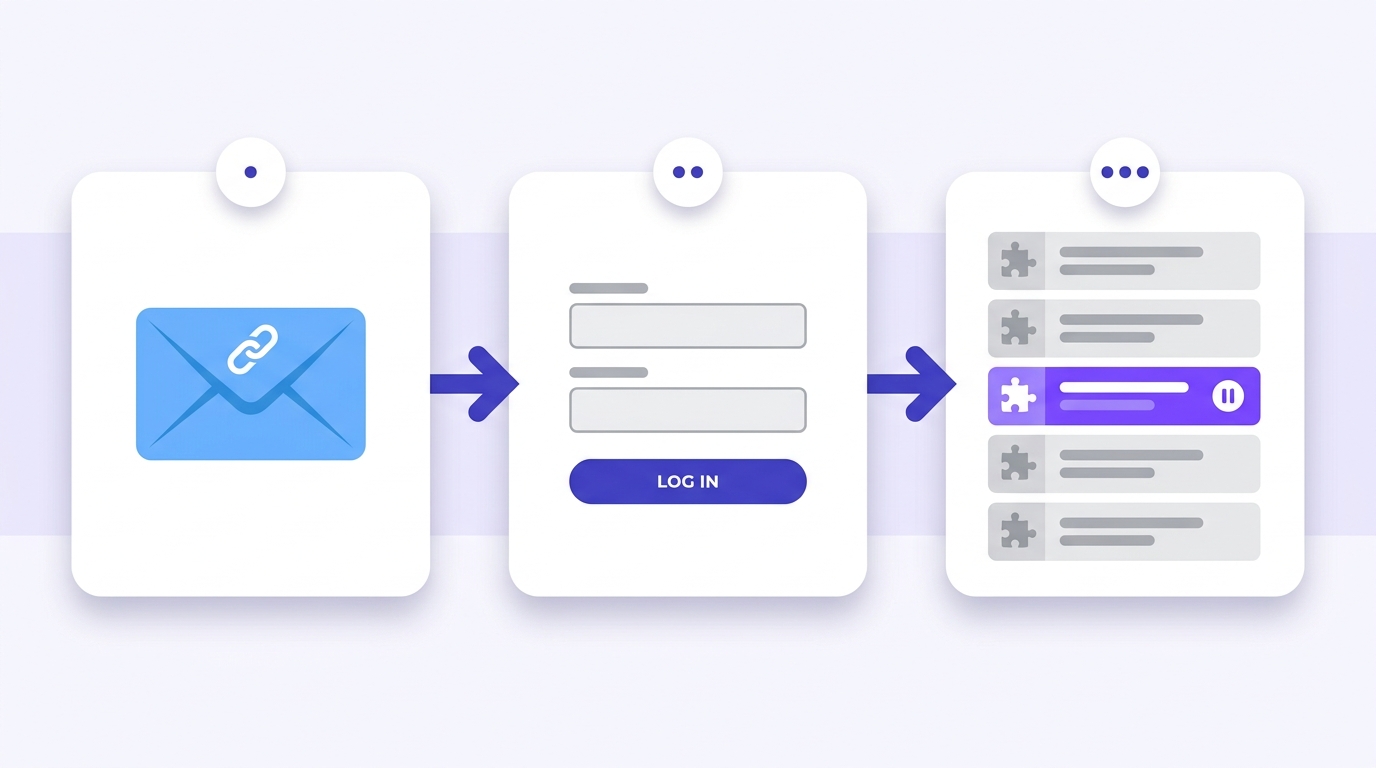
Since WordPress 5.2, the site sends an email to the administrator address when it detects a fatal error. It contains a time-limited link that opens recovery mode. In recovery mode WordPress pauses the failing plugin or theme for your session and tells you which one it is.
- Search the admin mailbox, including spam, for the email about a technical issue on your site.
- Click the link and log in.
- Deactivate or replace the plugin or theme that WordPress names.
- Choose Exit Recovery Mode and reload the site in a private window.
Read the debug log to find the culprit
If you can edit files but there is no email, turn on WordPress’s error log. Open wp-config.php and add these lines above the comment that says to stop editing:
define( 'WP_DEBUG', true );
define( 'WP_DEBUG_LOG', true );
define( 'WP_DEBUG_DISPLAY', false );
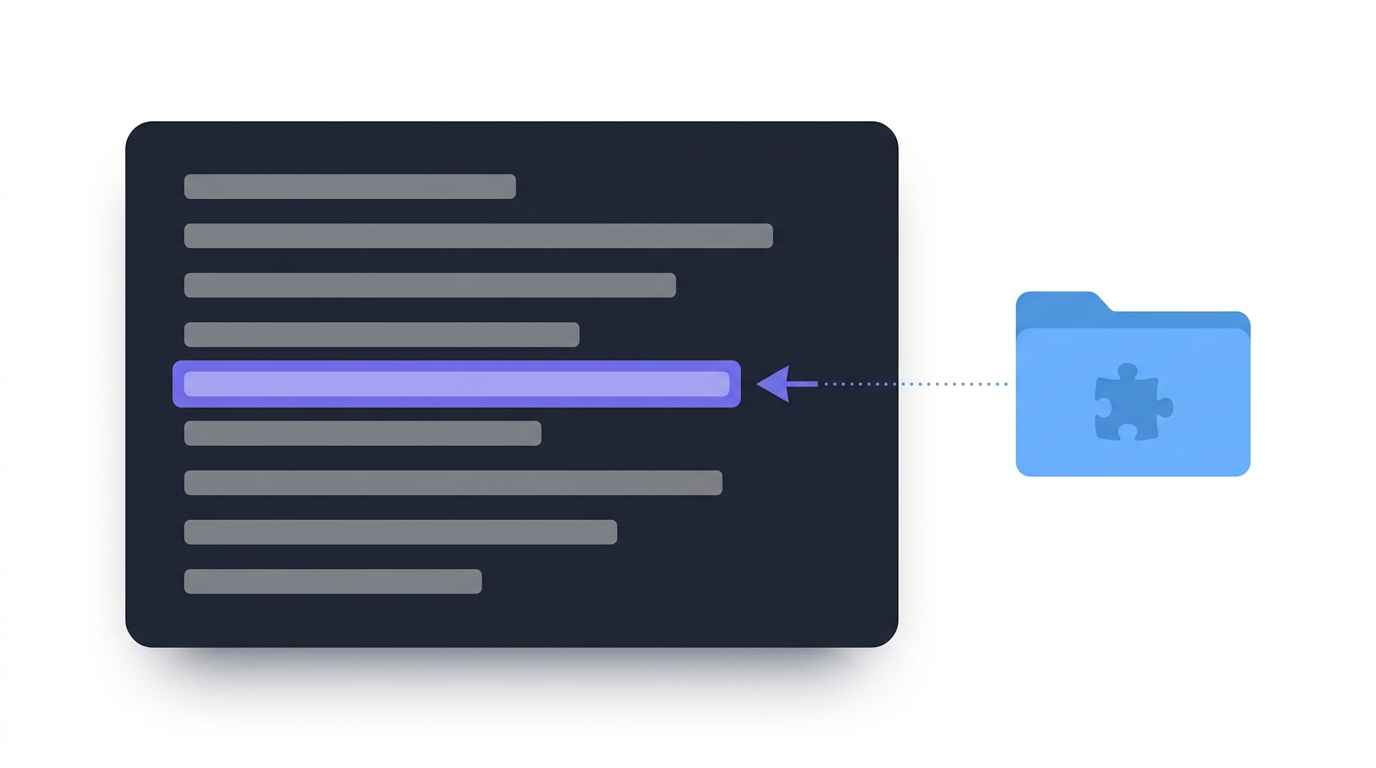
Reload the broken page once, then open wp-content/debug.log. Look for the last line that contains Fatal error. The file path in that line tells you who is responsible. When you are done, remove those three lines or set WP_DEBUG back to false, because a log file left behind should not stay on a live site.
| What the log shows | Likely cause | First fix |
|---|---|---|
A path containing /wp-content/plugins/plugin-name/ |
That plugin has an error or conflicts with something else. | Rename or deactivate that plugin. |
A path containing /wp-content/themes/theme-name/ |
Theme code or your own edit to functions.php has an error. |
Switch to a default theme or undo the edit. |
Allowed memory size exhausted |
A page needed more memory than PHP allows. | Ask the host to raise the memory limit, then find the heavy plugin. |
Call to undefined function or a syntax error after a PHP change |
Code is not compatible with the PHP version now in use. | Return to the previous PHP version, then update the code. |
Failed opening required |
A file is missing, often after an interrupted update. | Re-upload the plugin or theme files, or restore from backup. |
Common mistakes
- Reinstalling WordPress first. The problem is almost never core files, and a reinstall is slower than finding the one bad plugin.
- Deleting plugins to “clean up”. Renaming a folder is reversible. Deleting is not.
- Changing several things at once. Change one thing, reload, and note the result.
- Leaving debug mode on. Turn it off when the problem is solved.
- Skipping the backup. Take one before editing files, even when you are in a hurry.
Troubleshooting the fix itself
I renamed the plugins folder and the site still fails
Rename it back, then try renaming the active theme’s folder. If both fail, the debug log should now name a different cause. Share it with your host.
After renaming the folder back, all my plugins are inactive
That is normal. WordPress deactivates plugins it cannot find. Reactivate them one at a time and reload the site after each, so the one that triggers the error is obvious.
There is no debug.log file
WordPress only creates it when an error is written. Check that the lines are above the stop-editing comment, reload the failing page, and confirm the wp-content folder is writable.
How do I stop this happening again?
Update plugins one at a time rather than in bulk, keep a recent backup, remove plugins you no longer use, and choose hosting that lets you pick and update the PHP version. Our guide to choosing WordPress hosting compares the options.
FAQ
Is my content lost when I see this error?
In most cases, no. Posts and pages live in the database, and the error comes from code that runs on top of it.
Which email address gets the recovery link?
The administrator email set under Settings → General. If you no longer have access to that mailbox, use the file-based steps in the tool above.
Can a theme update cause this?
Yes. A theme update or a code edit to its files can trigger a fatal error. Switching to a default theme is the quickest test.
When should I ask my host for help?
If renaming plugins and the theme changes nothing, or you cannot reach your files at all, send your host the exact error, the time it started and what you changed last.
Does this tool fix my site?
No. It points you to the right manual steps. It does not connect to your website.
Your next step
If your site is down now, run the troubleshooter above and follow the steps in order. If it is healthy, take a backup today and read our guide to choosing and installing plugins safely so the next update is less risky.
Related reading
(function () { var root = document.getElementById('tz-top'); if (!root) { return; } var $ = function (id) { return document.getElementById(id); }; var wiz = $('tz-wiz'), path = $('tz-path'), back = $('tz-back'), copyBtn = $('tz-copy'), status = $('tz-status'); var NODES = { start: { q: 'Can you still log in at yourdomain.com/wp-admin?', h: 'Try a private browser window.', o: [['Yes, the dashboard loads', 'changed'], ['No, I get the same error there too', 'email']] }, changed: { q: 'What changed just before the error appeared?', o: [['I installed, updated or activated a plugin', 'fix_plugin'], ['I switched, updated or edited a theme', 'fix_theme'], ['My host changed the PHP version, or WordPress updated itself', 'fix_php'], ['Nothing, or I am not sure', 'fix_debug']] }, email: { q: 'Did WordPress email the site administrator a recovery mode link? Check spam too.', o: [['Yes, I have the email', 'fix_recovery'], ['No email arrived', 'files']] }, files: { q: 'Can you open your site files through your host File Manager or FTP?', o: [['Yes', 'changed_ftp'], ['No, or I do not know how', 'fix_host']] }, changed_ftp: { q: 'What changed just before the error appeared?', o: [['A plugin', 'fix_plugin_ftp'], ['A theme or an edit to theme files', 'fix_theme_ftp'], ['The PHP version, or an automatic update', 'fix_php'], ['I am not sure', 'fix_all_ftp']] } }; var ENDS = { fix_recovery: { t: 'Use recovery mode', s: ['Open the email and click the recovery mode link.', 'Log in. WordPress pauses the failing plugin or theme and names it.', 'Deactivate or replace the item it names.', 'Choose Exit Recovery Mode.', 'Reload the site in a private window to confirm it loads.'] }, fix_plugin: { t: 'Deactivate the last plugin you changed', s: ['Go to Plugins, then Installed Plugins.', 'Deactivate the plugin you installed, updated or activated most recently.', 'Reload the site. If the error is gone, that plugin is the cause.', 'Check the plugin support page for a fixed version, or choose an alternative.', 'Keep it off until you have tested an update.'] }, fix_theme: { t: 'Switch to a default theme', s: ['Go to Appearance, then Themes.', 'Activate a default theme that ships with WordPress.', 'Reload the site.', 'If it works, the previous theme or your edit to its files is the cause.', 'Undo your edit or restore the original theme files from a backup.'] }, fix_php: { t: 'Check the PHP version', s: ['Open your hosting panel and find the PHP version setting.', 'Switch back to the version the site last worked on and reload.', 'Update WordPress, your theme and your plugins.', 'Raise PHP one step at a time and reload after each change.', 'If it still fails, use the debug log steps in the article to find the plugin.'] }, fix_debug: { t: 'Find the cause with the debug log', s: ['Back up your files and database.', 'Add the three WP_DEBUG lines from the article to wp-config.php.', 'Reload the broken page once.', 'Open wp-content/debug.log and find the last Fatal error line.', 'The folder name in the file path names the plugin or theme.', 'Deactivate or rename that item, then remove the debug lines.'] }, fix_plugin_ftp: { t: 'Rename the plugin folder', s: ['Back up your files first.', 'Open wp-content/plugins in File Manager or FTP.', 'Rename the folder of the plugin you changed, for example by adding -off to its name.', 'Reload the site. If it loads, log in and remove or replace that plugin.', 'If the error remains, rename the whole plugins folder to plugins-off and reload.'] }, fix_theme_ftp: { t: 'Rename the active theme folder', s: ['Back up your files first.', 'Open wp-content/themes.', 'Rename the folder of your active theme. WordPress falls back to a default theme if one is installed.', 'Reload the site. If no default theme is installed, upload one.', 'Restore the original theme files or undo your edit.'] }, fix_all_ftp: { t: 'Rule out all plugins, then the theme', s: ['Back up your files first.', 'Rename wp-content/plugins to plugins-off and reload.', 'If the site loads, rename it back to plugins. All plugins will show as inactive.', 'Reactivate plugins one at a time, reloading after each, until the error returns.', 'If the site still fails, rename the active theme folder and reload.', 'If it still fails, use the debug log steps and contact your host.'] }, fix_host: { t: 'Ask your host for help', s: ['Contact your host support.', 'Send them the exact error message, when it started and what you changed last.', 'Ask them for the PHP error log for the site.', 'Ask which PHP version is active and whether they can restore a recent backup.'] } }; var history = []; var current = 'start';
function setStatus(msg, kind) { status.textContent = msg; status.className = 'tz-status' + (kind ? ' tz-' + kind : ''); }
function render() { wiz.innerHTML = ''; path.textContent = history.length ? 'Your answers: ' + history.map(function (h) { return h.a; }).join(' > ') : ''; back.disabled = history.length === 0; var node = NODES[current], end = ENDS[current]; var h = document.createElement('p'); h.className = 'tz-wq'; h.tabIndex = -1; if (node) { h.textContent = node.q; wiz.appendChild(h); if (node.h) { var hint = document.createElement('p'); hint.className = 'tz-hint'; hint.textContent = node.h; wiz.appendChild(hint); } var box = document.createElement('div'); box.className = 'tz-opts'; node.o.forEach(function (o) { var b = document.createElement('button'); b.type = 'button'; b.className = 'tz-opt'; b.textContent = o[0]; b.addEventListener('click', function () { history.push({ n: current, a: o[0] }); current = o[1]; setStatus('', ''); render(); }); box.appendChild(b); }); wiz.appendChild(box); copyBtn.disabled = true; } else if (end) { h.textContent = 'Fix: ' + end.t; wiz.appendChild(h); var ol = document.createElement('ol'); ol.className = 'tz-fixlist'; end.s.forEach(function (s) { var li = document.createElement('li'); li.textContent = s; ol.appendChild(li); }); wiz.appendChild(ol); var p = document.createElement('p'); p.textContent = 'If it still fails after these steps, restore your latest backup or ask your host to check the PHP error log.'; wiz.appendChild(p); copyBtn.disabled = false; } if (history.length) { h.focus(); } }
back.addEventListener('click', function () { var last = history.pop(); if (last) { current = last.n; setStatus('', ''); render(); } }); $('tz-restart').addEventListener('click', function () { history = []; current = 'start'; setStatus('', ''); render(); }); copyBtn.addEventListener('click', function () { var end = ENDS[current]; if (!end) { return; } var text = 'WordPress critical error checklist\nYour answers: ' + history.map(function (h) { return h.a; }).join(' > ') + '\n\nFix: ' + end.t + '\n' + end.s.map(function (s, i) { return (i + 1) + '. ' + s; }).join('\n'); function fallback() { var ta = document.createElement('textarea'); ta.value = text; ta.setAttribute('readonly', ''); ta.style.position = 'fixed'; ta.style.opacity = '0'; document.body.appendChild(ta); ta.select(); var ok = false; try { ok = document.execCommand('copy'); } catch (e) { ok = false; } document.body.removeChild(ta); setStatus(ok ? 'Checklist copied.' : 'Copy was blocked by your browser. Select the steps and copy them manually.', ok ? 'ok' : 'err'); } if (navigator.clipboard && window.isSecureContext) { navigator.clipboard.writeText(text).then(function () { setStatus('Checklist copied.', 'ok'); }, fallback); } else { fallback(); } }); render(); })();


