

A fresh WordPress site can publish posts and pages, and not much more. There is no contact form, no backup system and no online shop. Nearly everything beyond the basics is added with plugins, which is why understanding them early saves a lot of trouble later.
This guide explains what a WordPress plugin is, how plugins differ from themes, how to install one, and how to judge whether a plugin is safe before it goes anywhere near your site.
Quick answer: A plugin is an add-on that gives your WordPress site a new feature, such as a contact form or backups. You install plugins from Plugins → Add New Plugin in the dashboard. Before installing, check when the plugin was last updated, whether it is tested with your WordPress version, and what recent reviews say.
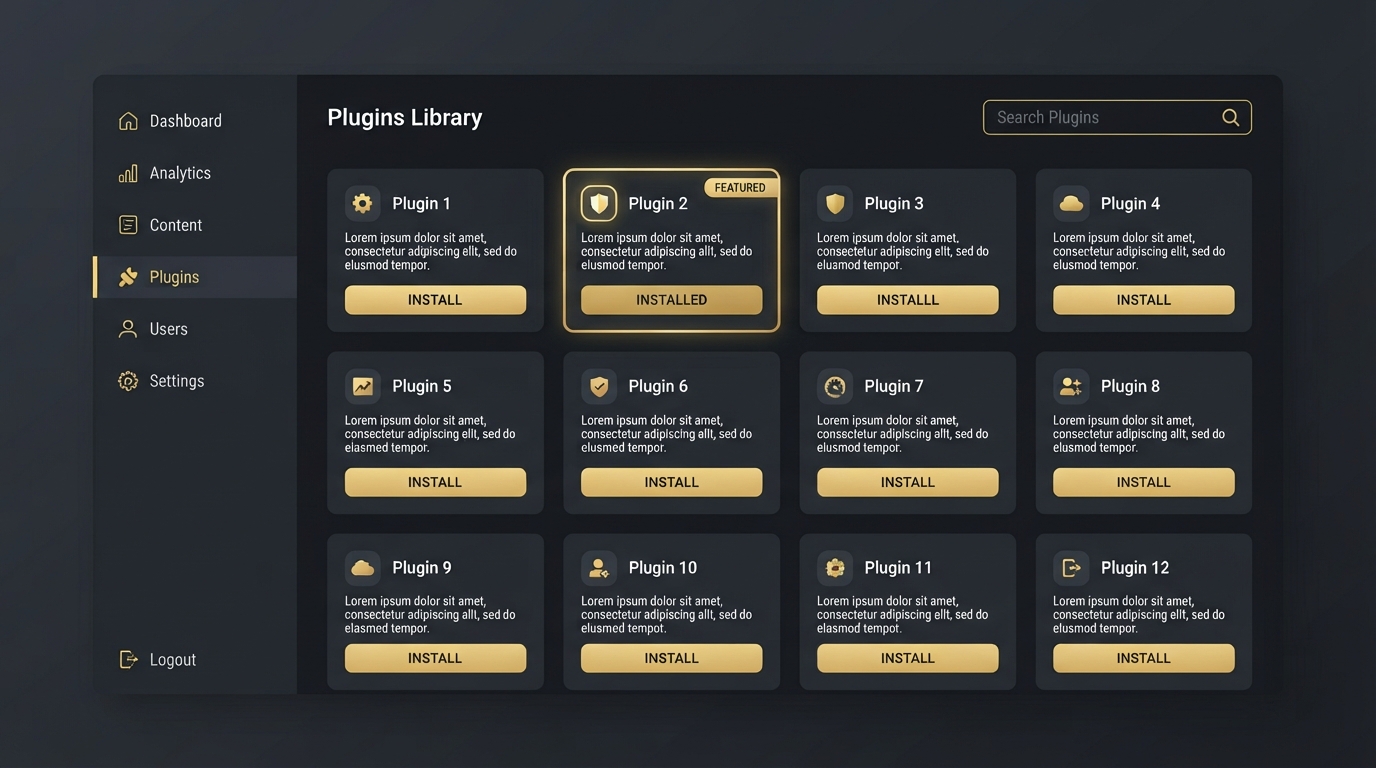
What Is a WordPress Plugin?
A plugin is a package of code that extends what WordPress can do. You add it to your site, activate it, and the new feature becomes available without you writing any code.
Common jobs handled by plugins include:
- Contact forms
- Backups
- Security and spam protection
- SEO settings such as titles, meta descriptions and sitemaps
- Caching and speed improvements
- Online shops and payments
- Visual page building
The official plugin directory on WordPress.org lists many thousands of free plugins. Paid plugins are sold separately by their developers.
Plugins vs Themes: What Is the Difference?
The simplest way to remember it: a theme controls how your site looks, and a plugin controls what your site can do.
| Point | Theme | Plugin |
|---|---|---|
| Main purpose | Design and layout | Features and functions |
| How many can be active | One at a time | Many at the same time |
| Where you manage it | Appearance → Themes | Plugins → Installed Plugins |
| What happens if you switch or remove it | The design changes; content stays | That feature stops working |
This split is also why you still need plugins after choosing a good theme. We cover the theme side in our comparison of free vs premium WordPress themes, and a page builder is a good example of a feature delivered as a plugin, as explained in our Elementor review.
How to Install a WordPress Plugin
Take a backup before adding anything new to a live site. If your site is hosted on WordPress.com, the ability to install plugins depends on your plan. The steps below apply to self-hosted WordPress.
Method 1: Install a free plugin from the dashboard
- Go to Plugins → Add New Plugin.
- Type the plugin's name or the feature you need in the search box.
- Open More Details and review the information described in the next section.
- Select Install Now, then Activate.
Method 2: Upload a plugin ZIP file
Paid plugins are normally downloaded from the developer's website as a ZIP file.
- Go to Plugins → Add New Plugin and select Upload Plugin.
- Choose the ZIP file from your computer. Do not unzip it first.
- Select Install Now, then Activate Plugin.
- Enter your license key in the plugin's settings if one was provided, so that updates work.
The process mirrors uploading a theme. If you want to compare the two, see how to install a WordPress theme.
How to Check a Plugin Before You Install It
Every plugin runs code on your site, so two minutes of checking is worthwhile. On the plugin's page in the directory, look at:
- Last updated. Recent updates suggest active maintenance. Be careful with plugins that have not been updated for a long time.
- Tested up to. This shows the latest WordPress version the developer has tested against. It should be at or near your version.
- Active installations. A large number is not proof of quality, but it means problems are more likely to be noticed and fixed.
- Reviews. Read the recent low ratings as well as the high ones, and see how the developer responds.
- Support forum. Check whether questions are being answered.
- What the free version includes. Many plugins keep important features for a paid upgrade.
Download plugins only from the WordPress.org directory or from the developer's own website.
How Many Plugins Is Too Many?
There is no fixed limit. What matters is the quality of each plugin and what it does. One poorly written plugin can slow a site more than ten small, well-built ones.
A sensible rule is to install a plugin only when it solves a problem you have now. Every plugin you add is something else to update and one more possible point of conflict.
Keeping Plugins Updated and Tidy
- Update regularly. Updates often contain security fixes. You will see available updates under Dashboard → Updates, and you can enable automatic updates for individual plugins on the Installed Plugins screen.
- Back up before major updates. This gives you a way back if something breaks.
- Delete what you do not use. A deactivated plugin no longer runs, but its files stay on your server. If you are not going to use it again, delete it.
- Avoid overlapping plugins. Two plugins doing the same job, such as two SEO or two caching plugins, commonly conflict.
Common Plugin Problems and How to Fix Them
- The site breaks right after activating a plugin. Deactivate it from the Plugins screen. If you cannot reach the dashboard, use your hosting file manager or FTP to rename that plugin's folder inside
wp-content/plugins. WordPress will deactivate it automatically. - "Destination folder already exists" during upload. A copy of the plugin is already installed. Recent WordPress versions offer to replace it with the uploaded one; otherwise delete the old copy first.
- A feature stops working after an update. Deactivate your other plugins one at a time to find a conflict, then report it to the plugin's support forum.
- Using "nulled" paid plugins. Pirated copies break the license and frequently contain malicious code. Buy from the official source or use a free alternative.
Conclusion
Plugins are what turn a basic WordPress install into the site you actually need. Add them deliberately: pick one plugin per job, check its update history and reviews, install it from a trusted source and keep it updated. A short, well-maintained list of plugins will serve you better than a long one you never review.
Frequently Asked Questions
What is a plugin in WordPress in simple words?
A plugin is an add-on that gives your WordPress site a new feature, such as a contact form, backups or an online shop, without you having to write code.
Are WordPress plugins free?
Many are. The WordPress.org directory lists thousands of free plugins, and a lot of them offer a paid version with extra features. Other plugins are sold only as paid products by their developers.
What is the difference between a plugin and a theme?
A theme controls the design and layout of your site. A plugin adds functionality. You can have only one active theme but many active plugins at the same time.
How many plugins should a WordPress site have?
There is no set number. Install only what you need, choose well-maintained plugins and remove any you no longer use. Quality matters more than the count.
Do plugins slow down a WordPress site?
They can. The effect depends on what each plugin does and how well it is built. A few lightweight plugins have little impact, while one heavy or badly coded plugin can slow a site noticeably.
Is it safe to install WordPress plugins?
Generally yes, if you install from WordPress.org or the developer's official site, check the update history and reviews first, and keep plugins updated. Avoid pirated copies of paid plugins.
What is the difference between deactivating and deleting a plugin?
Deactivating switches the plugin off but leaves its files and usually its settings in place. Deleting removes the files from your server. Delete plugins you do not plan to use again.


